


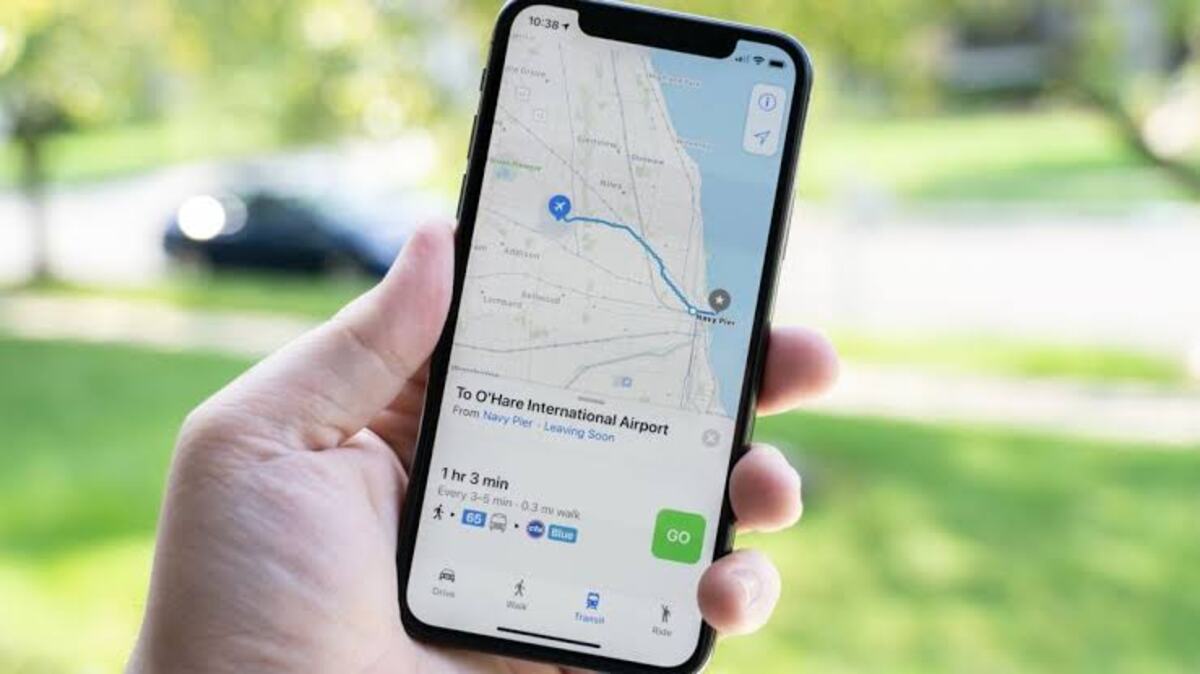
You probably do not know, but you do not need to purchase a tracking gadget if you own an iPhone. Your phone is already a tracking device and can help you find someone on the Maps. However, there are prior settings you need to enable before you can successfully carry out a tracking operation using an iPhone.
Before you can find someone’s location on the Maps, you need the Find My app. Luckily, it is installed on most recent iPhones. But that is not all, as you need to enable Share My Location with your friend, spouse, or child before you can track their location.
Once that is done, you can easily locate them on the Map, and they can do the same so far both parties consented to it.
Meanwhile, aside from locating your partner on the Maps, the Find My app can help track a stolen device. It does not have to be used only when an individual is being tracked. If you are sharing your location with a friend, and then you or they lost their device, you can use the Find My app to locate the missing handset.
How can I find someone on the Maps using an iPhone?
The iPhone comes with the Find My app. The app allows you to find someone’s location on the Map. However, you need to enable Start Sharing Location first while your friend needs to agree before you can find them on the Map.
While there are ways you can do this without their knowledge by using spy apps, there is a possibility they will detect and uninstall the app. When that happens, trust is broken, and you lose the money spent purchasing these apps. Nevertheless, you should have their consent even if you want to track them using these third-party apps, as they can be useful in keeping the family safe.
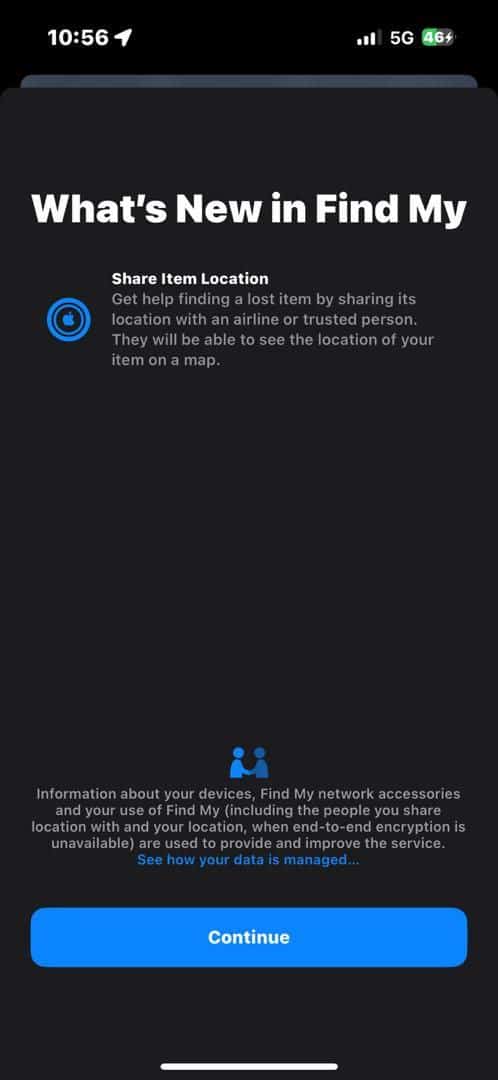
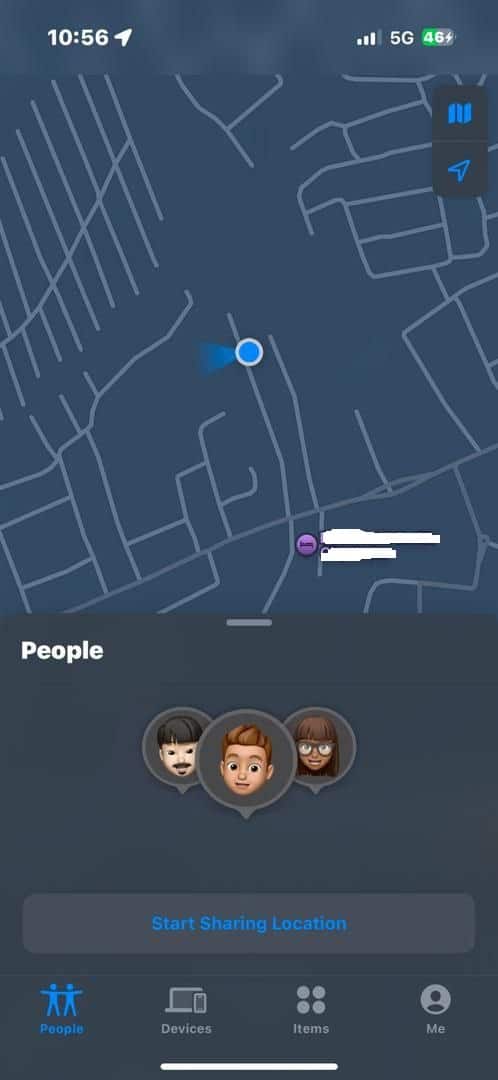
- Launch the Find My app on your iPhone and click on People. It is located at the bottom left corner.
- Tap on Start Sharing Location if it is your first time using the Find My on someone.
- Choose someone from your contact list with whom you want to share your location and click the Send option.
- Please tap on the person’s name after sending your invitation to see details about them.
If it is someone you are not following already, scroll down and tap Ask to Follow Location. They will receive an invitation, and when they accept it, you can find their location on the Map. However, locations need to be turned on before you can see their location on the Maps.
How can I track someone’s location on an iPhone?
After setting up the Find My app for people you want to track, it is now easy to locate them on the Maps. Launch the Find My app, go to the People tab, and click the name of the person you wish to see their location. If the individual has their location on, you will see their location on the Maps. You can tap Directions to get the best route to where they are.
Set Notifications to work as Geo-fencing on iPhone
If you want to set up Geo-fencing on an iPhone, you can tap Notification. This will let you mark places on the Maps. You will get notifications when that person Arrives, Leaves, or Is Not At a specific location. Interestingly, you can set how often you get those notifications. Of course, the individual you have Geo-fencing on will be notified each time you get a notification on their location.
Conclusion
To find someone’s location on the Maps using an iPhone is very easy and straightforward as long as the device has the Find My app installed. However, you need prior consent from the target individual before you can track their location. Also, location need to be enabled before you can successfully find someone on the Map with your iPhone.
