

Close Menu
AdimorahBlogAdimorahBlog
  • Home
  • ABOUT US
  • CONTACT US
  • PRIVACY POLICY
  • XIAOMI
    • Xiaomi apps
      • POCO beta testers
    • Xiaomi News
    • Xiaomi Pad
    • Redmi
    • POCO
  • MIUI updates
    • MIUI 14
    • MIUI beta testers
    • MIUI launcher
  • Google
    • Google Camera
    • Pixel
    • Google chrome
  • Samsung
    • OneUI news
    • Samsung News
    • Samsung Galaxy Watch
  • Android
    • Android 13
    • Android 14
    • Android 15
    • Android Auto
  • Smartphone
    • Apple
    • Samsung
    • Pixel
    • XIAOMI
    • Redmi
    • POCO
    • OnePlus
    • Sony
    • Fairphone
    • OnePlus
  • How To
  • Gaming
    • Video gaming
Facebook X (Twitter) Instagram
AdimorahBlogAdimorahBlog
Subscribe
  • Home
  • ABOUT US
  • CONTACT US
  • PRIVACY POLICY
  • XIAOMI
    • Xiaomi apps
      • POCO beta testers
    • Xiaomi News
    • Xiaomi Pad
    • Redmi
    • POCO
  • MIUI updates
    • MIUI 14
    • MIUI beta testers
    • MIUI launcher
  • Google
    • Google Camera
    • Pixel
    • Google chrome
  • Samsung
    • OneUI news
    • Samsung News
    • Samsung Galaxy Watch
  • Android
    • Android 13
    • Android 14
    • Android 15
    • Android Auto
  • Smartphone
    • Apple
    • Samsung
    • Pixel
    • XIAOMI
    • Redmi
    • POCO
    • OnePlus
    • Sony
    • Fairphone
    • OnePlus
  • How To
  • Gaming
    • Video gaming
AdimorahBlogAdimorahBlog
Home | MIUI update | Xiaomi News | How To | How to Lock Any App on iPhone or iPad
How To

How to Lock Any App on iPhone or iPad

Anna BrookesBy Anna BrookesNovember 28, 2022No Comments3 Mins Read
Facebook Twitter Pinterest LinkedIn Tumblr Email
How to Lock Any App on iPhone or iPad
Share
Facebook Twitter LinkedIn Pinterest Email

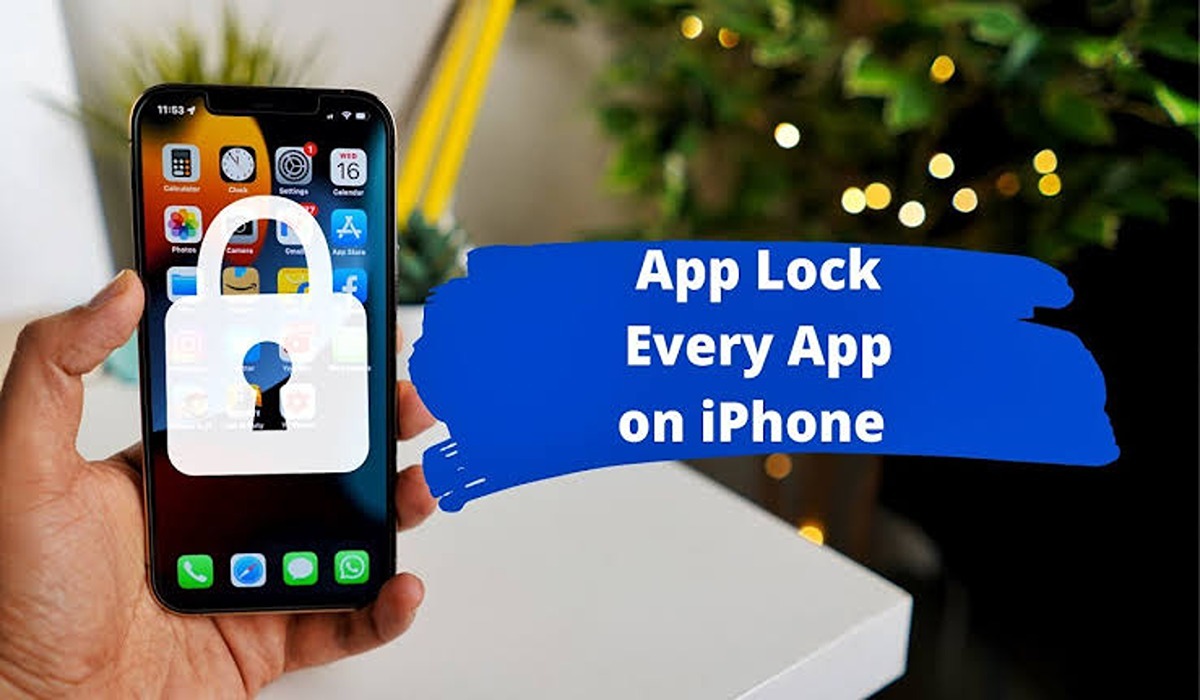
Do you know that you can now lock any app individually on your iPhone or iPad? A lot of iPhone and iPad users still don’t know about this, while some may have heard, but do not know how to do it.
How to Lock Any App on iPhone or iPad

Yes, you can get this done and that is why this article: how to lock any app on iPhone or iPad, has been well put to explain and guide you on how to get this done with ease.

advertisement

How to lock any app on iPhone or iPad on a single app

You can use this to restrict someone from having access to some other apps on your iOS device which you don’t want them to access. For example, if you want them to access some apps but not your email or photos, you can lock your iPhone or iPad to a single application with the steps below:

Step 1: Go to settings

Step 2: Scroll and select “Accessibility”

Step 3: Click on “Guided Access”

Step 4: Flip the functionality and tap on the password settings to enable Face ID or create a PIN to disable the code while ensuring you can remember what you used.

Step 5: You can tap the Display Auto-Lock menu and select Never to keep your display on if you’re giving the phone to a child.

Step 6: Launch the app you want to lock into the Guided Access mode and press the side button three times or press the Home button three times if you’re using an older version.

The Guided Access interface will show where you can circle the areas in your screen you want to disable.

Step 7: Finally, tap on Start to turn on the Guided Access mode to start functioning.

You can disable this feature again by triple-clicking on the side or Home button, entering the passcode earlier set, or scanning your face with face ID.

Other Methods to lock any app on iPhone or iPad

Apart from the above method, you can also get this done using other methods such as Screen time, you can also use Shortcut which connects multiple apps and form a set of instructions to complete tasks automatically.

However, you must bear in your mind that this shortcut applies only to iOS 13 and later.

After creating the automation successfully on Shortcut, have it well understood that shortcuts will still require the Face ID, Touch ID, or passcode used earlier to unlock it.

This tells the reason why you should use a passcode you will not forget after entering it.

Follow us on Telegram for more posts and news. We are also on Twitter.

How to IPad iPhone
Share. Facebook Twitter Pinterest LinkedIn Tumblr Email
Anna Brookes

Related Posts

How to Use a Free Online Image Converter Easily

September 26, 2025

How to track people using Find My Device on Android

June 11, 2025

How to find someone on the Maps using an iPhone

June 9, 2025
Add A Comment
Leave A Reply

Recent Posts
  • How to Use a Free Online Image Converter Easily
  • Xiaomi starts rolling out stable Android 16 based on HyperOS 2
  • Galaxy A36 Android 16-based One UI 8 build spotted
  • Galaxy A15 One UI 8 build spotted on Samsung servers
  • Xiaomi 13T HyperOS 2.2 is now available for download
About Us
AdimorahBlog was founded in 2017 and has grown into a global brand in the past years. As we continue to expand, we will keep providing our readers with the best coverage on Xiaomi HyperOS updates and smartphone latest Android OS updates. We strive to become the update hub for all smartphones. Contact Us: info@adimorahblog.com
AdimorahBlog
Facebook X (Twitter) YouTube Telegram
  • Home
  • CONTACT US
  • ABOUT US
  • PRIVACY POLICY
© 2025 AdimorahBlog. Designed by ThemeSphere.

Type above and press Enter to search. Press Esc to cancel.