


Close Menu
AdimorahBlogAdimorahBlog
  • Home
  • ABOUT US
  • CONTACT US
  • PRIVACY POLICY
  • XIAOMI
    • Xiaomi apps
      • POCO beta testers
    • Xiaomi News
    • Xiaomi Pad
    • Redmi
    • POCO
  • MIUI updates
    • MIUI 14
    • MIUI beta testers
    • MIUI launcher
  • Google
    • Google Camera
    • Pixel
    • Google chrome
  • Samsung
    • OneUI news
    • Samsung News
    • Samsung Galaxy Watch
  • Android
    • Android 13
    • Android 14
    • Android 15
    • Android Auto
  • Smartphone
    • Apple
    • Samsung
    • Pixel
    • XIAOMI
    • Redmi
    • POCO
    • OnePlus
    • Sony
    • Fairphone
    • OnePlus
  • How To
  • Gaming
    • Video gaming
Facebook X (Twitter) Instagram
AdimorahBlogAdimorahBlog
Subscribe
  • Home
  • ABOUT US
  • CONTACT US
  • PRIVACY POLICY
  • XIAOMI
    • Xiaomi apps
      • POCO beta testers
    • Xiaomi News
    • Xiaomi Pad
    • Redmi
    • POCO
  • MIUI updates
    • MIUI 14
    • MIUI beta testers
    • MIUI launcher
  • Google
    • Google Camera
    • Pixel
    • Google chrome
  • Samsung
    • OneUI news
    • Samsung News
    • Samsung Galaxy Watch
  • Android
    • Android 13
    • Android 14
    • Android 15
    • Android Auto
  • Smartphone
    • Apple
    • Samsung
    • Pixel
    • XIAOMI
    • Redmi
    • POCO
    • OnePlus
    • Sony
    • Fairphone
    • OnePlus
  • How To
  • Gaming
    • Video gaming
AdimorahBlogAdimorahBlog
Home | MIUI update | Xiaomi News | Apple | How to See Your iPhone Call History and Delete Unwanted Calls
Apple

How to See Your iPhone Call History and Delete Unwanted Calls

Anna BrookesBy Anna BrookesAugust 20, 2022Updated:August 20, 2022No Comments3 Mins Read
Facebook Twitter Pinterest LinkedIn Tumblr Email
How to check your iPhone call history and delete unwanted calls
Share
Facebook Twitter LinkedIn Pinterest Email

Your iPhone call history gives you an easy way to see who you’ve called and who has called you, as well as the length of each call and when it occurred. This can be helpful information if, say, you are trying to get a refund from your wireless provider because they didn’t charge you correctly, or if you just want to delete some old calls so your list isn’t cluttered up with people you don’t even talk to anymore. Here are easy steps on how to see your iPhone call history and delete unwanted calls.
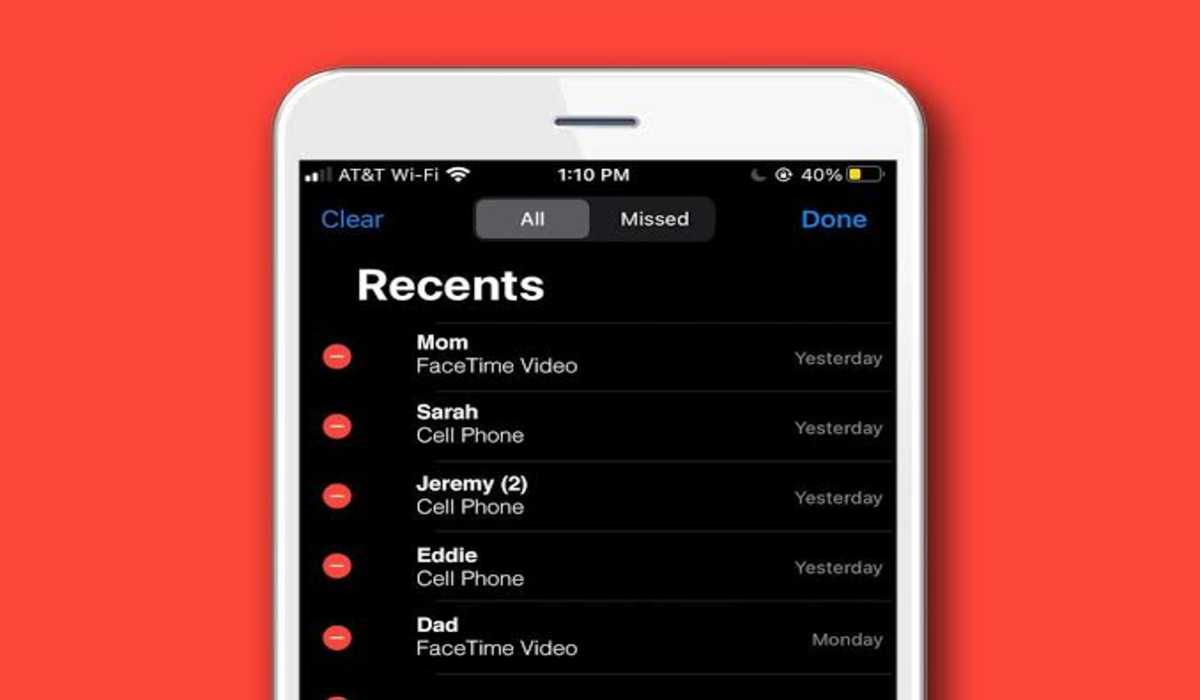
How to see your iPhone call history

How to see your iPhone call history

To see your call log on iPhone,

advertisement
  • Launch your iPhone Phone app.
  • Open your recent phone call history by clicking on Recents from the bottom menu.
  • You can now view your call history by scrolling through it.

How to view the details of your iPhone call history

If you need to see the details of your call history on an iPhone like the date or time of the call, or the duration it lasted, here’s how to do that:

  • Again, launch your iPhone Phone app.
  • Click on the Recents tabs in the bottom menu.
  • Now to see call details, click the “i” icon that’s on the right side of each call made.

If you need to see how long a call on your iPhone lasted, just look in the box that’s under the contact name or phone number.

If you wish to save the phone number of the person you called in your contacts, you can do so by selecting the individual call and then tapping the info icon. This will provide you with the option of saving it as a new contact, adding it to an existing contact, blocking them, sending them a message, and more.

How to delete an individual call on your iPhone

To delete a call history individually,

  • Launch your iPhone phone app.
  • From the bottom menu, click on the Recents button.
  • Click on Edit at the top right corner of your phone’s screen.
  • Click on the red circle button by the left of each number in the Recent call list.
  • The Delete button will be revealed, click on it to delete a call.

How to delete all recent calls on your iPhone

You may decide that you do not need any of your previous call histories and wish to delete them all at once. Here’s how to do so:

  • Launch your iPhone Phone app.
  • Click on the Recents tab at the bottom menu
  • Confirm that the Recents is right under the All tab at the top of the screen.
  • Click on Edit at the top right of your screen.
  • Click on Clear at the top right corner.
  • Now tap Clear All Recents to delete all recent call lists, both incomings and outgoings.

How to
Share. Facebook Twitter Pinterest LinkedIn Tumblr Email
Anna Brookes

Related Posts

How To Track Someone On Google Maps in 2025

April 25, 2025

How to Fix Cannot Connect to App Store on iPhone or iPad

March 2, 2025

Download Apple iPhone 16E wallpapers

February 19, 2025
Add A Comment

Comments are closed.

Recent Posts
  • How to Use a Free Online Image Converter Easily
  • Xiaomi starts rolling out stable Android 16 based on HyperOS 2
  • Galaxy A36 Android 16-based One UI 8 build spotted
  • Galaxy A15 One UI 8 build spotted on Samsung servers
  • Xiaomi 13T HyperOS 2.2 is now available for download
About Us
AdimorahBlog was founded in 2017 and has grown into a global brand in the past years. As we continue to expand, we will keep providing our readers with the best coverage on Xiaomi HyperOS updates and smartphone latest Android OS updates. We strive to become the update hub for all smartphones. Contact Us: info@adimorahblog.com
AdimorahBlog
Facebook X (Twitter) YouTube Telegram
  • Home
  • CONTACT US
  • ABOUT US
  • PRIVACY POLICY
© 2026 AdimorahBlog. All Rights Reserved

Type above and press Enter to search. Press Esc to cancel.