

Close Menu
AdimorahBlogAdimorahBlog
  • Home
  • ABOUT US
  • CONTACT US
  • PRIVACY POLICY
  • XIAOMI
    • Xiaomi apps
      • POCO beta testers
    • Xiaomi News
    • Xiaomi Pad
    • Redmi
    • POCO
  • MIUI updates
    • MIUI 14
    • MIUI beta testers
    • MIUI launcher
  • Google
    • Google Camera
    • Pixel
    • Google chrome
  • Samsung
    • OneUI news
    • Samsung News
    • Samsung Galaxy Watch
  • Android
    • Android 13
    • Android 14
    • Android 15
    • Android Auto
  • Smartphone
    • Apple
    • Samsung
    • Pixel
    • XIAOMI
    • Redmi
    • POCO
    • OnePlus
    • Sony
    • Fairphone
    • OnePlus
  • How To
  • Gaming
    • Video gaming
Facebook X (Twitter) Instagram
AdimorahBlogAdimorahBlog
Subscribe
  • Home
  • ABOUT US
  • CONTACT US
  • PRIVACY POLICY
  • XIAOMI
    • Xiaomi apps
      • POCO beta testers
    • Xiaomi News
    • Xiaomi Pad
    • Redmi
    • POCO
  • MIUI updates
    • MIUI 14
    • MIUI beta testers
    • MIUI launcher
  • Google
    • Google Camera
    • Pixel
    • Google chrome
  • Samsung
    • OneUI news
    • Samsung News
    • Samsung Galaxy Watch
  • Android
    • Android 13
    • Android 14
    • Android 15
    • Android Auto
  • Smartphone
    • Apple
    • Samsung
    • Pixel
    • XIAOMI
    • Redmi
    • POCO
    • OnePlus
    • Sony
    • Fairphone
    • OnePlus
  • How To
  • Gaming
    • Video gaming
AdimorahBlogAdimorahBlog
Home | MIUI update | Xiaomi News | Apple Maps | How To Fix Apple Maps Not Working
Apple Maps

How To Fix Apple Maps Not Working

Adimorah JudeBy Adimorah JudeOctober 1, 2022No Comments3 Mins Read
Facebook Twitter Pinterest LinkedIn Tumblr Email
How To Fix Apple Maps Not Working
Share
Facebook Twitter LinkedIn Pinterest Email

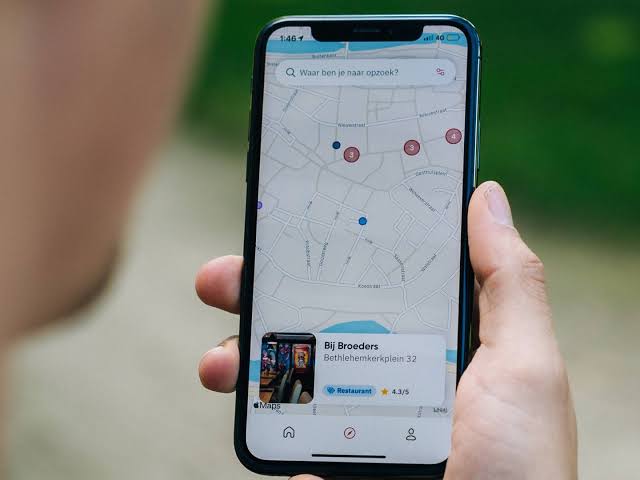
Finding where you are and where you want to go is a breeze with the Apple Maps app installed and running on the latest iOS on your iPhone. It employs GPS, or Global Positioning System, to determine a subject’s ground position. However, if you are experiencing issues with your Apple Maps app, such as signal loss, data inaccuracy, failure to update your location, or showing the incorrect location, do not panic! There are potential solutions to the problem of Apple Maps not working.
Fix Apple Maps Not Working

In this guide, we’ll be having a look at how to fix Apple Maps not working. Bearing that in mind, let’s kick things off!

advertisement

4 Potential Fixes to Apple Maps Not Working 

Method #1: Make Sure You Have A Good Signal

A good signal is required for iPhone Maps to work optimally. If you are somewhere where signals cannot penetrate, it is likely that Apple Maps will not work. Try moving to a different location where you can get a better signal and see if Apple Maps works.

Method #2: Ensure that Wi-Fi and cellular data are turned on

Your iPhone must be connected to WiFi or cellular data in order to use Apple Maps. It should not only be connected, but it should also be reliable with a strong signal strength. 

Method #3: Refresh Location Services

If Apple Maps is unable to pinpoint your exact location, you can try refreshing Location Services  on your iPhone.

Here’s how to refresh Location Services:

  • From the home screen, navigate to Settings.
  • Next, select Privacy.
  • Toggle OFF the icon next to Location Services to disable it
  • Wait a few seconds, then toggle ON again to turn it on. 
  • Relaunch Apple Maps to see if this resolves the issue.

Method #4: Reset Network Settings

Since Apple Maps relies on network settings on your iPhone, a simple reset of your network settings may suffice to resolve Apple Maps not working. If your iPhone’s settings are incorrectly configured, this is most likely the source of the problem. Resetting Network settings returns all settings to their default state, allowing you to configure them again. You will not lose any data by doing this, but make sure to save all of your passwords, including Wi-Fi passwords, as these will be used to log in later.

Wrapping it Up

There you have it on how to fix Apple Maps not working. If you have any issues accessing Apple Maps on your iPhone device, following the tips above should help you resolve the issue. Just go through each of the troubleshooting tips and see which one works for you!

Apple Maps How to
Share. Facebook Twitter Pinterest LinkedIn Tumblr Email
Adimorah Jude
  • Website
  • Facebook
  • X (Twitter)

I'm a passionate tech blogger.

Related Posts

How To Track Someone On Google Maps in 2025

April 25, 2025

How to Fix Cannot Connect to App Store on iPhone or iPad

March 2, 2025

How To Activate YouTube Kids on Smart TV

February 2, 2025
Add A Comment
Leave A Reply

Recent Posts
  • How to Use a Free Online Image Converter Easily
  • Xiaomi starts rolling out stable Android 16 based on HyperOS 2
  • Galaxy A36 Android 16-based One UI 8 build spotted
  • Galaxy A15 One UI 8 build spotted on Samsung servers
  • Xiaomi 13T HyperOS 2.2 is now available for download
About Us
AdimorahBlog was founded in 2017 and has grown into a global brand in the past years. As we continue to expand, we will keep providing our readers with the best coverage on Xiaomi HyperOS updates and smartphone latest Android OS updates. We strive to become the update hub for all smartphones. Contact Us: info@adimorahblog.com
AdimorahBlog
Facebook X (Twitter) YouTube Telegram
  • Home
  • CONTACT US
  • ABOUT US
  • PRIVACY POLICY
© 2026 AdimorahBlog. All Rights Reserved

Type above and press Enter to search. Press Esc to cancel.