

Close Menu
AdimorahBlogAdimorahBlog
  • Home
  • ABOUT US
  • CONTACT US
  • PRIVACY POLICY
  • XIAOMI
    • Xiaomi apps
      • POCO beta testers
    • Xiaomi News
    • Xiaomi Pad
    • Redmi
    • POCO
  • MIUI updates
    • MIUI 14
    • MIUI beta testers
    • MIUI launcher
  • Google
    • Google Camera
    • Pixel
    • Google chrome
  • Samsung
    • OneUI news
    • Samsung News
    • Samsung Galaxy Watch
  • Android
    • Android 13
    • Android 14
    • Android 15
    • Android Auto
  • Smartphone
    • Apple
    • Samsung
    • Pixel
    • XIAOMI
    • Redmi
    • POCO
    • OnePlus
    • Sony
    • Fairphone
    • OnePlus
  • How To
  • Gaming
    • Video gaming
Facebook X (Twitter) Instagram
AdimorahBlogAdimorahBlog
Subscribe
  • Home
  • ABOUT US
  • CONTACT US
  • PRIVACY POLICY
  • XIAOMI
    • Xiaomi apps
      • POCO beta testers
    • Xiaomi News
    • Xiaomi Pad
    • Redmi
    • POCO
  • MIUI updates
    • MIUI 14
    • MIUI beta testers
    • MIUI launcher
  • Google
    • Google Camera
    • Pixel
    • Google chrome
  • Samsung
    • OneUI news
    • Samsung News
    • Samsung Galaxy Watch
  • Android
    • Android 13
    • Android 14
    • Android 15
    • Android Auto
  • Smartphone
    • Apple
    • Samsung
    • Pixel
    • XIAOMI
    • Redmi
    • POCO
    • OnePlus
    • Sony
    • Fairphone
    • OnePlus
  • How To
  • Gaming
    • Video gaming
AdimorahBlogAdimorahBlog
Home | MIUI update | Xiaomi News | How To | How to Hide Pictures on Google Pixel Phones with Photos App
How To

How to Hide Pictures on Google Pixel Phones with Photos App

Anna BrookesBy Anna BrookesDecember 25, 2022No Comments3 Mins Read
Facebook Twitter Pinterest LinkedIn Tumblr Email
How to Hide Pictures on Google Pixel Phones with Photos App
Share
Facebook Twitter LinkedIn Pinterest Email

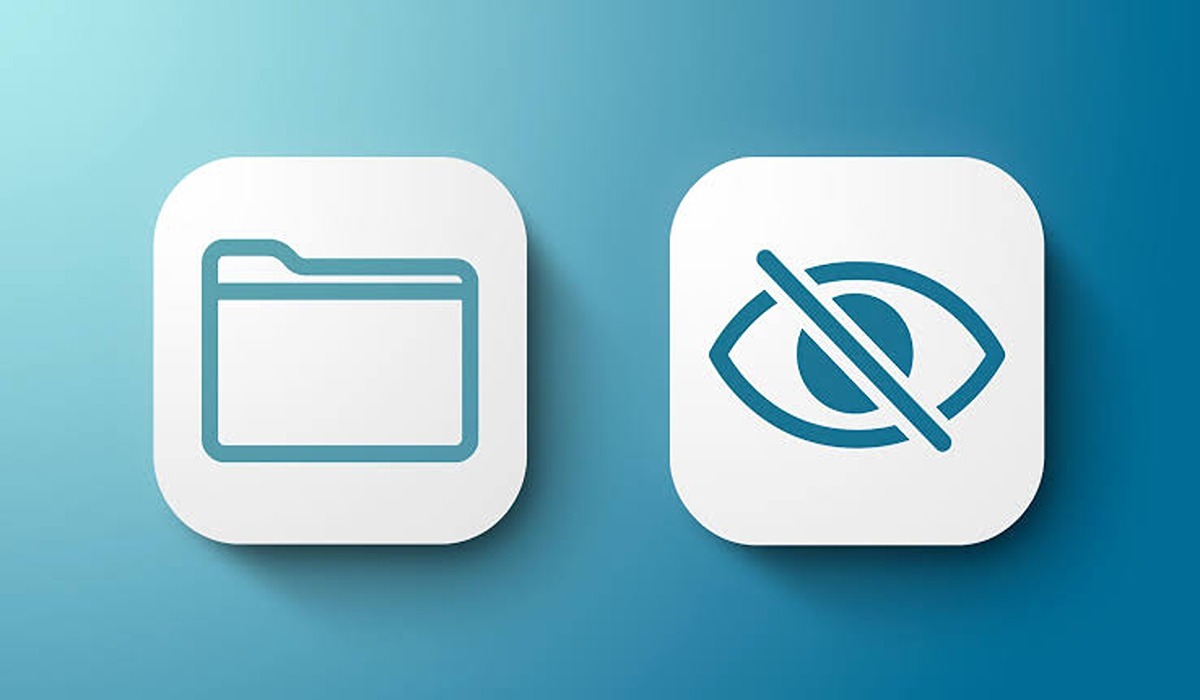
Are you looking to keep some of your pictures private on your Google Pixel phone? The Photos app that comes pre-installed on your Pixel phone has a built-in feature that allows you to hide pictures from your main gallery. This article discusses how to hide pictures on Google Pixel phones using the photos app.
how to hide pictures on Google Pixel

What is the Locked Folder Feature in Google Pixel phones?

The Locked Folder feature in Google Pixel phones is a built-in feature of the Photos app that allows users to hide and secure certain pictures and videos. When pictures are added to the Locked Folder, they are not visible in the main gallery or other albums and can only be accessed by entering the password that the user has set for the folder. The Locked Folder feature is a convenient and secure way to keep sensitive or personal pictures private and protect them from being viewed by others.

advertisement

How to Hide Pictures on Google Pixel Phones

To use the Locked Folder feature, you must have a Pixel 3 device or later. Follow the below steps to make some of your pictures on your Google Pixel phone private:

  • Open the Photos app on your Google Pixel phone.
  • Select the pictures you want to hide and tap on the three horizontal lines icon located at the top left corner of the screen to open the app’s menu.
  • Tap on the “Locked Folder” option from the menu.
  • If you have not set a password for the Locked Folder yet, you will be prompted to set one. Choose a strong password that you can remember easily but others cannot guess.
  • After setting the password, you will see the Locked Folder screen. You can now add pictures to the Locked Folder by tapping on the “+” icon located at the bottom right corner of the screen.
  • Select the pictures that you want to hide from the gallery and tap on the “Add to Locked Folder” button.
  • The selected pictures will now be moved to the Locked Folder and will not be visible in the main gallery or other albums.
  • To view the pictures in the Locked Folder, tap on the three horizontal lines icon again and select the “Locked Folder” option. You will be prompted to enter the password that you set earlier. Once you enter the correct password, you will be able to view and access the pictures in the Locked Folder.

That’s it! You have successfully hidden pictures on your Google Pixel phone using the Locked Folder feature of the Photos app. This is a simple and effective way to keep your pictures private and secure, without the need for any additional apps or software. So, the next time you want to hide some pictures on your Google Pixel phone, just follow the steps mentioned above and you will be good to go.

Google Pixel How to
Share. Facebook Twitter Pinterest LinkedIn Tumblr Email
Anna Brookes

Related Posts

How to Use a Free Online Image Converter Easily

September 26, 2025

How to track people using Find My Device on Android

June 11, 2025

How to find someone on the Maps using an iPhone

June 9, 2025
Add A Comment
Leave A Reply

Recent Posts
  • How to Use a Free Online Image Converter Easily
  • Xiaomi starts rolling out stable Android 16 based on HyperOS 2
  • Galaxy A36 Android 16-based One UI 8 build spotted
  • Galaxy A15 One UI 8 build spotted on Samsung servers
  • Xiaomi 13T HyperOS 2.2 is now available for download
About Us
AdimorahBlog was founded in 2017 and has grown into a global brand in the past years. As we continue to expand, we will keep providing our readers with the best coverage on Xiaomi HyperOS updates and smartphone latest Android OS updates. We strive to become the update hub for all smartphones. Contact Us: info@adimorahblog.com
AdimorahBlog
Facebook X (Twitter) YouTube Telegram
  • Home
  • CONTACT US
  • ABOUT US
  • PRIVACY POLICY
© 2025 AdimorahBlog. Designed by ThemeSphere.

Type above and press Enter to search. Press Esc to cancel.