

Close Menu
AdimorahBlogAdimorahBlog
  • Home
  • ABOUT US
  • CONTACT US
  • PRIVACY POLICY
  • XIAOMI
    • Xiaomi apps
      • POCO beta testers
    • Xiaomi News
    • Xiaomi Pad
    • Redmi
    • POCO
  • MIUI updates
    • MIUI 14
    • MIUI beta testers
    • MIUI launcher
  • Google
    • Google Camera
    • Pixel
    • Google chrome
  • Samsung
    • OneUI news
    • Samsung News
    • Samsung Galaxy Watch
  • Android
    • Android 13
    • Android 14
    • Android 15
    • Android Auto
  • Smartphone
    • Apple
    • Samsung
    • Pixel
    • XIAOMI
    • Redmi
    • POCO
    • OnePlus
    • Sony
    • Fairphone
    • OnePlus
  • How To
  • Gaming
    • Video gaming
Facebook X (Twitter) Instagram
AdimorahBlogAdimorahBlog
Subscribe
  • Home
  • ABOUT US
  • CONTACT US
  • PRIVACY POLICY
  • XIAOMI
    • Xiaomi apps
      • POCO beta testers
    • Xiaomi News
    • Xiaomi Pad
    • Redmi
    • POCO
  • MIUI updates
    • MIUI 14
    • MIUI beta testers
    • MIUI launcher
  • Google
    • Google Camera
    • Pixel
    • Google chrome
  • Samsung
    • OneUI news
    • Samsung News
    • Samsung Galaxy Watch
  • Android
    • Android 13
    • Android 14
    • Android 15
    • Android Auto
  • Smartphone
    • Apple
    • Samsung
    • Pixel
    • XIAOMI
    • Redmi
    • POCO
    • OnePlus
    • Sony
    • Fairphone
    • OnePlus
  • How To
  • Gaming
    • Video gaming
AdimorahBlogAdimorahBlog
Home | MIUI update | Xiaomi News | How To | How to Screen Record on Mac in 2 Easy Ways
How To

How to Screen Record on Mac in 2 Easy Ways

Anna BrookesBy Anna BrookesJanuary 29, 2023Updated:October 6, 2023No Comments3 Mins Read
Facebook Twitter Pinterest LinkedIn Tumblr Email
How to Screen Record on Mac in 2 Easy Ways
Share
Facebook Twitter LinkedIn Pinterest Email

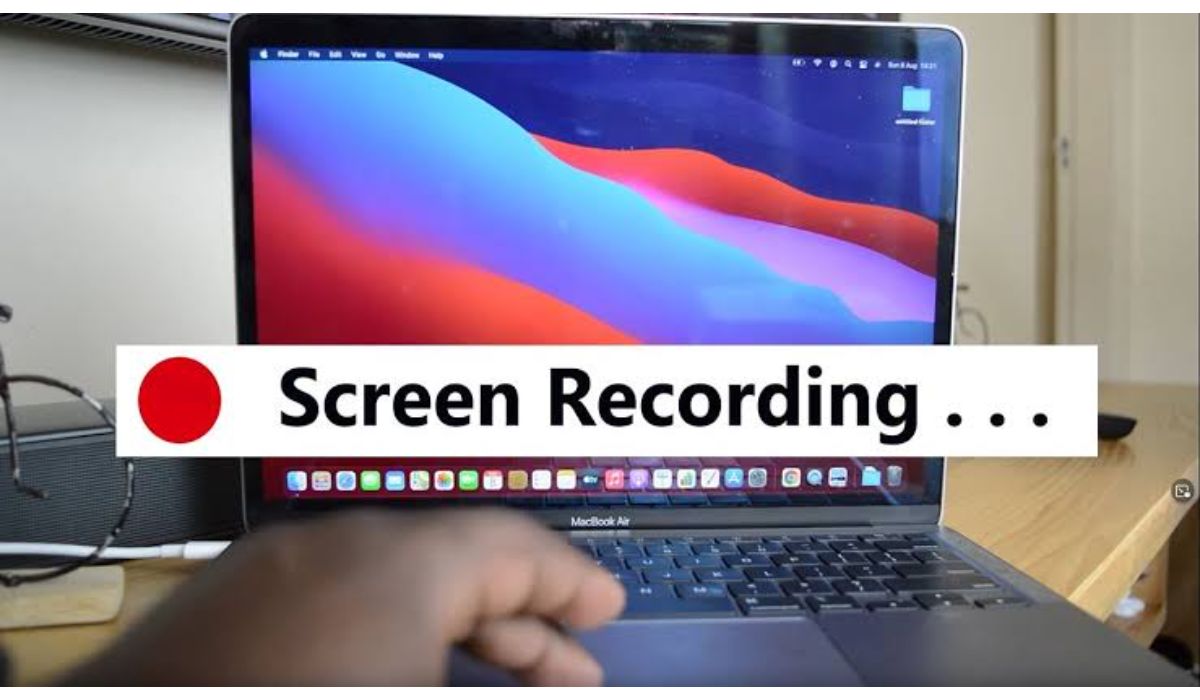
Screen recording has become an essential tool in various fields, including education, business, and entertainment. If you need to record a tutorial or capture a gameplay, screen recording makes it easy to create high-quality video content. On your Mac computer, there are two built-in options that you can use to take the perfect screen recording – QuickTime Player and Screenshot Toolbar. In this article, we will cover how to screen record on Mac using both of these tools.
How to Screen Record on Mac

How to screen record on Mac using QuickTime Player

QuickTime Player is a pre-installed media player on Mac computers. It has a built-in screen recording feature that makes it easy to capture video footage from your screen. Here’s how to use QuickTime Player to screen record on Mac:

advertisement
  1. Launch QuickTime Player – you can find it in the Applications folder or search for it using Spotlight.
  2. Click File, then New Screen Recording.
  3. Set up the recording options – you can choose to record the entire screen, a selected portion of the screen, or a specific window.
  4. Start the recording – click the red Record button to begin recording.
  5. To stop the recording, click the Stop button in the menu bar to end the recording.

How to screen record on Mac using the screenshot toolbar

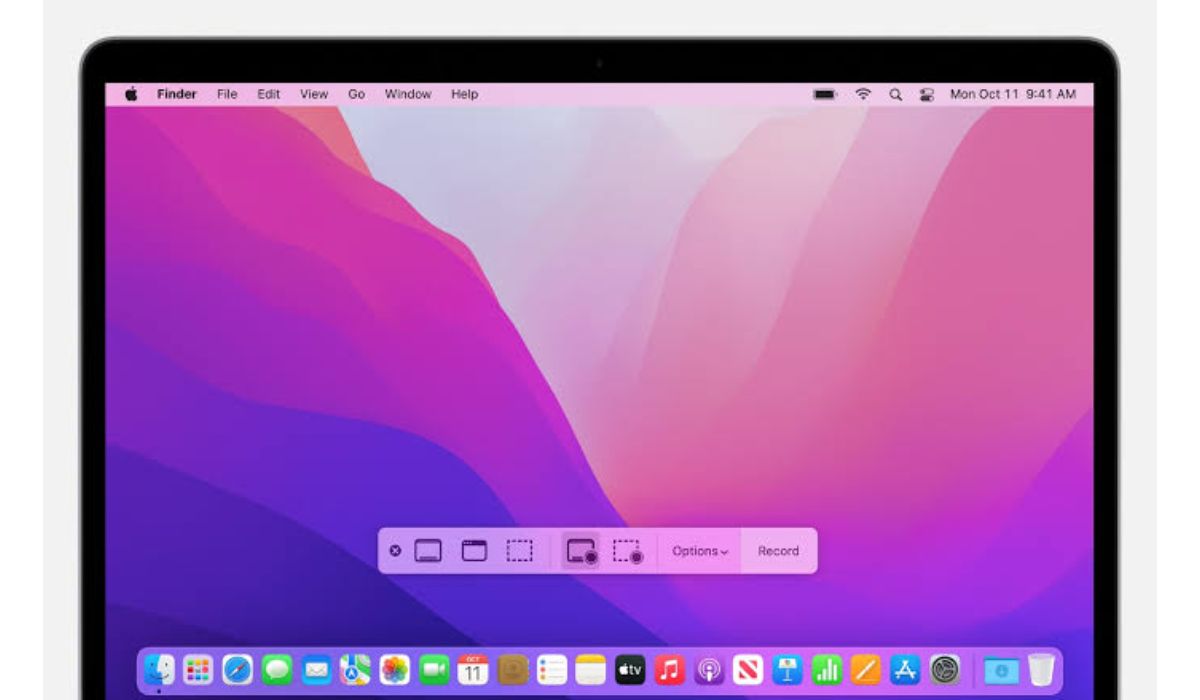
The Screenshot Toolbar is a built-in tool on Mac computers running macOS Mojave or newer. It allows you to capture screenshots and screen recordings. Here’s how to use the Screenshot Toolbar to screen record on Mac:

  1. Launch the Screenshot Toolbar by pressing Shift + Command + 5 on your keyboard.
  2. Set up the recording options – you can choose to record the entire screen, a selected portion of the screen, or a specific window.
  3. Click the Record button in the Screenshot Toolbar to begin recording.
  4. When you are done recording, click the Stop button in the menu bar to end the recording.

Tips for optimizing your recording quality

  • Use a high-quality microphone for audio recording.
  • Adjust the recording options to match your needs – for example, you can change the recording quality, screen resolution, and frame rate.
  • Use a fast and stable internet connection if you’re recording from an online source.

Wrapping Up

If you have been wanting to screen record on your Mac, and have been looking for ways to do that, after going through this short guide, we are certain that you can now be able to pull this through either by using the QuickTime Player, or the screenshot toolbar.

How to Mac
Share. Facebook Twitter Pinterest LinkedIn Tumblr Email
Anna Brookes

Related Posts

How to Use a Free Online Image Converter Easily

September 26, 2025

How to track people using Find My Device on Android

June 11, 2025

How to find someone on the Maps using an iPhone

June 9, 2025
Add A Comment
Leave A Reply

Recent Posts
  • How to Use a Free Online Image Converter Easily
  • Xiaomi starts rolling out stable Android 16 based on HyperOS 2
  • Galaxy A36 Android 16-based One UI 8 build spotted
  • Galaxy A15 One UI 8 build spotted on Samsung servers
  • Xiaomi 13T HyperOS 2.2 is now available for download
About Us
AdimorahBlog was founded in 2017 and has grown into a global brand in the past years. As we continue to expand, we will keep providing our readers with the best coverage on Xiaomi HyperOS updates and smartphone latest Android OS updates. We strive to become the update hub for all smartphones. Contact Us: info@adimorahblog.com
AdimorahBlog
Facebook X (Twitter) YouTube Telegram
  • Home
  • CONTACT US
  • ABOUT US
  • PRIVACY POLICY
© 2025 AdimorahBlog. Designed by ThemeSphere.

Type above and press Enter to search. Press Esc to cancel.