



When trying to play music or videos purchased from the iTunes Store, you might see a message that says “Cannot Authorize Computer.” This means that your computer is not authorized to play content that was purchased with a different Apple ID.
There are a few ways to fix this problem. You can authorize your computer with the correct Apple ID, or you can deauthorize all computers and then reauthorize only the one you want to use. You can also try resetting your computer’s host file.
Keep reading to learn more about how to fix Cannot Authorize Computer on iTunes Error.
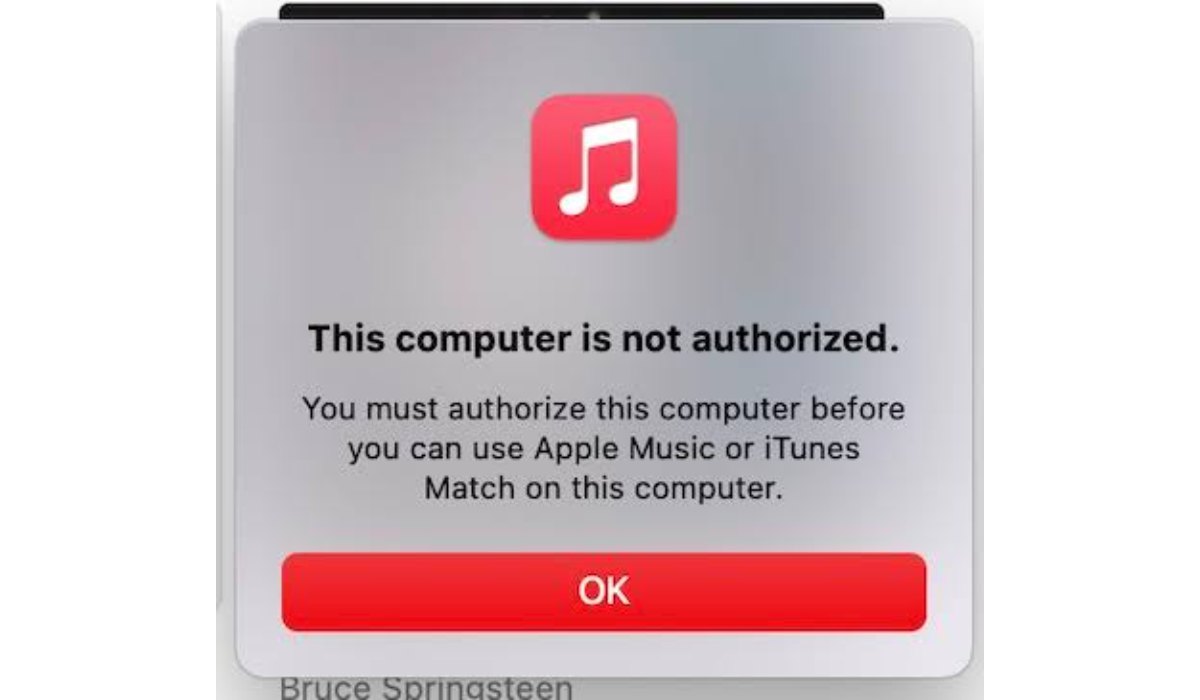
Fix Cannot Authorize Computer on iTunes Error
Solution 1: Check Your Apple ID
The first solution is to check your Apple ID. Sometimes, this error occurs when you have multiple Apple IDs, or you have changed your password recently. To fix this issue, you need to ensure that you are signed in with the correct Apple ID and password.
To check your Apple ID, go to the “iTunes” menu, click on “Account,” and then click on “View My Account.” Here, you can see your Apple ID and password. If you have forgotten your Apple ID or password, you can reset it by clicking on the “Forgot Apple ID or password” link.
Solution 2: Deauthorize Your Computer
If you have already authorized the maximum number of computers, you will see the “Cannot Authorize Computer on iTunes” error. In this case, you need to deauthorize one or more computers to authorize the current computer. To deauthorize a computer, follow these steps:
- Open iTunes on the computer that you want to deauthorize.
- Go to the “Account” menu and select “Authorization.”
- Click on “Deauthorize This Computer” and then enter your Apple ID and password.
Once you have deauthorized the necessary computers, you can try to authorize the current computer again.
Solution 3: Update iTunes
If you are using an outdated version of iTunes, it can cause the “Cannot Authorize Computer on iTunes” error. Therefore, you need to update iTunes to the latest version. To update iTunes, follow these steps:
- Open iTunes on your computer.
- Go to the “Help” menu and select “Check for Updates.”
- If there is an update available, click on “Download iTunes” and follow the on-screen instructions to install it.
Once you have updated iTunes, try to authorize your computer again.
Solution 4: Check Your Internet Connection
If your internet connection is slow or not stable, it can cause the “Cannot Authorize Computer on iTunes” error. Therefore, you need to ensure that your internet connection is stable and fast enough to authorize your computer. You can do this by running a speed test or contacting your internet service provider.
Solution 5: Contact Apple Support
If none of the above solutions work, you may need to contact Apple Support for assistance. They can help you diagnose the issue and provide a solution.
Wrapping Up
In conclusion, the “Cannot Authorize Computer” or “This Computer is not Authorised” error on iTunes” error can be frustrating, but there are several solutions to fix it. By following the solutions discussed in this guide, you can authorize your computer on iTunes without any issues.
