

Close Menu
AdimorahBlogAdimorahBlog
  • Home
  • ABOUT US
  • CONTACT US
  • PRIVACY POLICY
  • XIAOMI
    • Xiaomi apps
      • POCO beta testers
    • Xiaomi News
    • Xiaomi Pad
    • Redmi
    • POCO
  • MIUI updates
    • MIUI 14
    • MIUI beta testers
    • MIUI launcher
  • Google
    • Google Camera
    • Pixel
    • Google chrome
  • Samsung
    • OneUI news
    • Samsung News
    • Samsung Galaxy Watch
  • Android
    • Android 13
    • Android 14
    • Android 15
    • Android Auto
  • Smartphone
    • Apple
    • Samsung
    • Pixel
    • XIAOMI
    • Redmi
    • POCO
    • OnePlus
    • Sony
    • Fairphone
    • OnePlus
  • How To
  • Gaming
    • Video gaming
Facebook X (Twitter) Instagram
AdimorahBlogAdimorahBlog
Subscribe
  • Home
  • ABOUT US
  • CONTACT US
  • PRIVACY POLICY
  • XIAOMI
    • Xiaomi apps
      • POCO beta testers
    • Xiaomi News
    • Xiaomi Pad
    • Redmi
    • POCO
  • MIUI updates
    • MIUI 14
    • MIUI beta testers
    • MIUI launcher
  • Google
    • Google Camera
    • Pixel
    • Google chrome
  • Samsung
    • OneUI news
    • Samsung News
    • Samsung Galaxy Watch
  • Android
    • Android 13
    • Android 14
    • Android 15
    • Android Auto
  • Smartphone
    • Apple
    • Samsung
    • Pixel
    • XIAOMI
    • Redmi
    • POCO
    • OnePlus
    • Sony
    • Fairphone
    • OnePlus
  • How To
  • Gaming
    • Video gaming
AdimorahBlogAdimorahBlog
Home | MIUI update | Xiaomi News | Windows | How To Map a Network Drive on Windows 11
Windows

How To Map a Network Drive on Windows 11

Adimorah JudeBy Adimorah JudeMarch 6, 2023No Comments3 Mins Read
Facebook Twitter Pinterest LinkedIn Tumblr Email
How To Map a Network Drive on Windows 11
Share
Facebook Twitter LinkedIn Pinterest Email

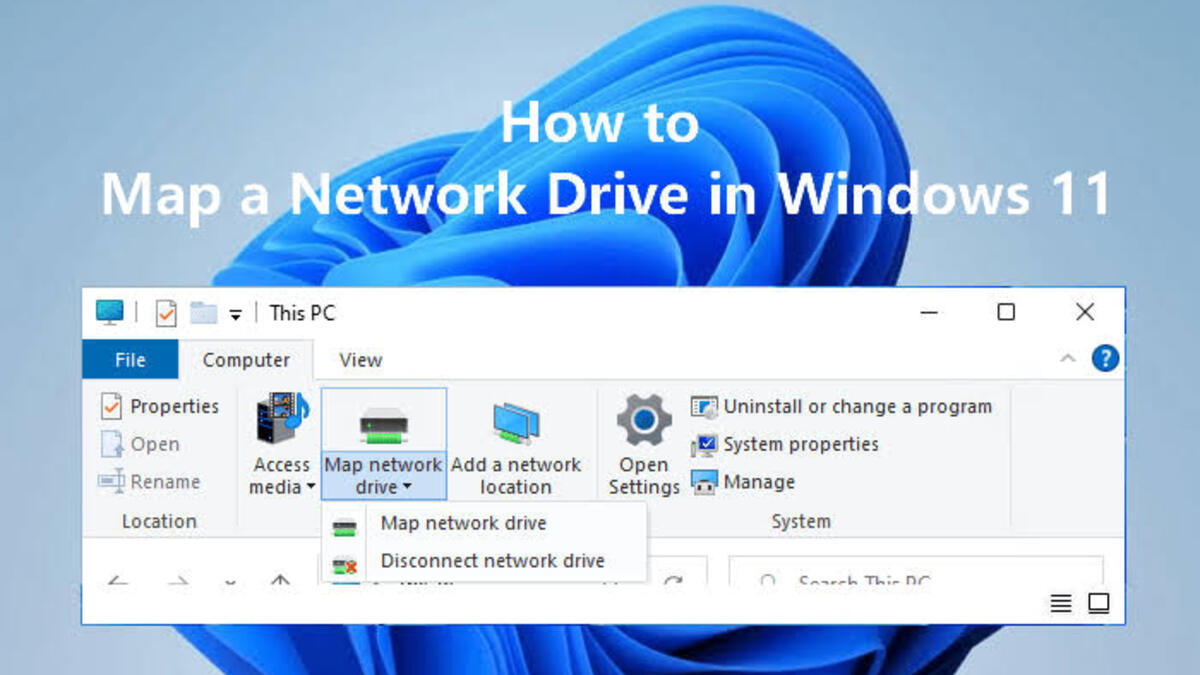
To map a network drive on Windows 11 is a simple yet essential task for anyone who needs to access shared folders or files on a network. By mapping a network drive, you can quickly access shared files or folders without having to browse the network each time you need to access them. 
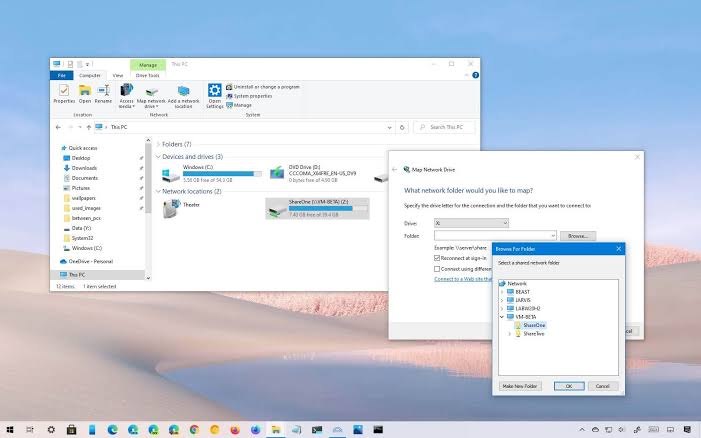
Map a Network Drive on Windows 11

In this guide, we will walk you through the steps required to map a network drive on Windows 11. Whether you are a beginner or an experienced user, you will find this guide easy to follow, and you will be mapping your network drive in no time.

advertisement

How To Map a Network Drive on Windows 11

Mapping a network drive on Windows is quite easy using File Explorer. Here’s how to go about it;

  • Open File Explorer by pressing Win + E, and click on “This PC” in the left pane.
  • Right-click on “This PC” and select “Map network drive…” from the context menu.
  • Choose a unique drive letter to use for accessing the shared folder from your computer.
  • Enter the path to the shared folder you want to map in the “Folder:” field. This can be a local path on your computer or a network path.
  • If required, check the “Connect using different credentials” box and enter the username and password for accessing the shared folder.
  • Click “Finish” to complete the mapping process.

Once you’ve completed these steps, the shared folder will be mapped to the specified drive letter in File Explorer. You can access the shared folder at any time by double-clicking on the drive.

How To Disconnect a Mapped Network Drive

If you no longer require access to the files on a mapped network drive, disconnecting it is a straightforward process. Follow these simple steps to disconnect a mapped network drive;

  • Open File Explorer by pressing Win + E.
  • Right-click on Network in the left pane and select Disconnect network drive from the context menu.
  • In the Disconnect Network Drive window, select the drive letter or name of the network drive that you want to disconnect.
  • Click OK to confirm and disconnect the network drive from your system.

After completing these steps, the mapped network drive will disappear from File Explorer, and you will no longer be able to access it using the previously assigned drive letter.

Wrapping It Up

Mapping a network drive on Windows 11 is a simple process that can greatly enhance your productivity by allowing you to quickly access shared files or folders on your network. By following the steps outlined in this guide, you can easily map a network drive on your Windows 11 computer, regardless of your level of experience. 

How to Windows Windows 11
Share. Facebook Twitter Pinterest LinkedIn Tumblr Email
Adimorah Jude
  • Website
  • Facebook
  • X (Twitter)

I'm a passionate tech blogger.

Related Posts

How To Track Someone On Google Maps in 2025

April 25, 2025

How to Fix Cannot Connect to App Store on iPhone or iPad

March 2, 2025

How To Activate YouTube Kids on Smart TV

February 2, 2025
Add A Comment
Leave A Reply

Recent Posts
  • How to Use a Free Online Image Converter Easily
  • Xiaomi starts rolling out stable Android 16 based on HyperOS 2
  • Galaxy A36 Android 16-based One UI 8 build spotted
  • Galaxy A15 One UI 8 build spotted on Samsung servers
  • Xiaomi 13T HyperOS 2.2 is now available for download
About Us
AdimorahBlog was founded in 2017 and has grown into a global brand in the past years. As we continue to expand, we will keep providing our readers with the best coverage on Xiaomi HyperOS updates and smartphone latest Android OS updates. We strive to become the update hub for all smartphones. Contact Us: info@adimorahblog.com
AdimorahBlog
Facebook X (Twitter) YouTube Telegram
  • Home
  • CONTACT US
  • ABOUT US
  • PRIVACY POLICY
© 2026 AdimorahBlog. All Rights Reserved

Type above and press Enter to search. Press Esc to cancel.