

Close Menu
AdimorahBlogAdimorahBlog
  • Home
  • ABOUT US
  • CONTACT US
  • PRIVACY POLICY
  • XIAOMI
    • Xiaomi apps
      • POCO beta testers
    • Xiaomi News
    • Xiaomi Pad
    • Redmi
    • POCO
  • MIUI updates
    • MIUI 14
    • MIUI beta testers
    • MIUI launcher
  • Google
    • Google Camera
    • Pixel
    • Google chrome
  • Samsung
    • OneUI news
    • Samsung News
    • Samsung Galaxy Watch
  • Android
    • Android 13
    • Android 14
    • Android 15
    • Android Auto
  • Smartphone
    • Apple
    • Samsung
    • Pixel
    • XIAOMI
    • Redmi
    • POCO
    • OnePlus
    • Sony
    • Fairphone
    • OnePlus
  • How To
  • Gaming
    • Video gaming
Facebook X (Twitter) Instagram
AdimorahBlogAdimorahBlog
Subscribe
  • Home
  • ABOUT US
  • CONTACT US
  • PRIVACY POLICY
  • XIAOMI
    • Xiaomi apps
      • POCO beta testers
    • Xiaomi News
    • Xiaomi Pad
    • Redmi
    • POCO
  • MIUI updates
    • MIUI 14
    • MIUI beta testers
    • MIUI launcher
  • Google
    • Google Camera
    • Pixel
    • Google chrome
  • Samsung
    • OneUI news
    • Samsung News
    • Samsung Galaxy Watch
  • Android
    • Android 13
    • Android 14
    • Android 15
    • Android Auto
  • Smartphone
    • Apple
    • Samsung
    • Pixel
    • XIAOMI
    • Redmi
    • POCO
    • OnePlus
    • Sony
    • Fairphone
    • OnePlus
  • How To
  • Gaming
    • Video gaming
AdimorahBlogAdimorahBlog
Home | MIUI update | Xiaomi News | How To | How To Stop macOS from Automatically Installing App and Software Updates 
How To

How To Stop macOS from Automatically Installing App and Software Updates 

Frank OchasoBy Frank OchasoApril 1, 2023Updated:October 6, 2023No Comments3 Mins Read
Facebook Twitter Pinterest LinkedIn Tumblr Email
How To Stop macOS from Automatically Installing App and Software Updates 
Share
Facebook Twitter LinkedIn Pinterest Email

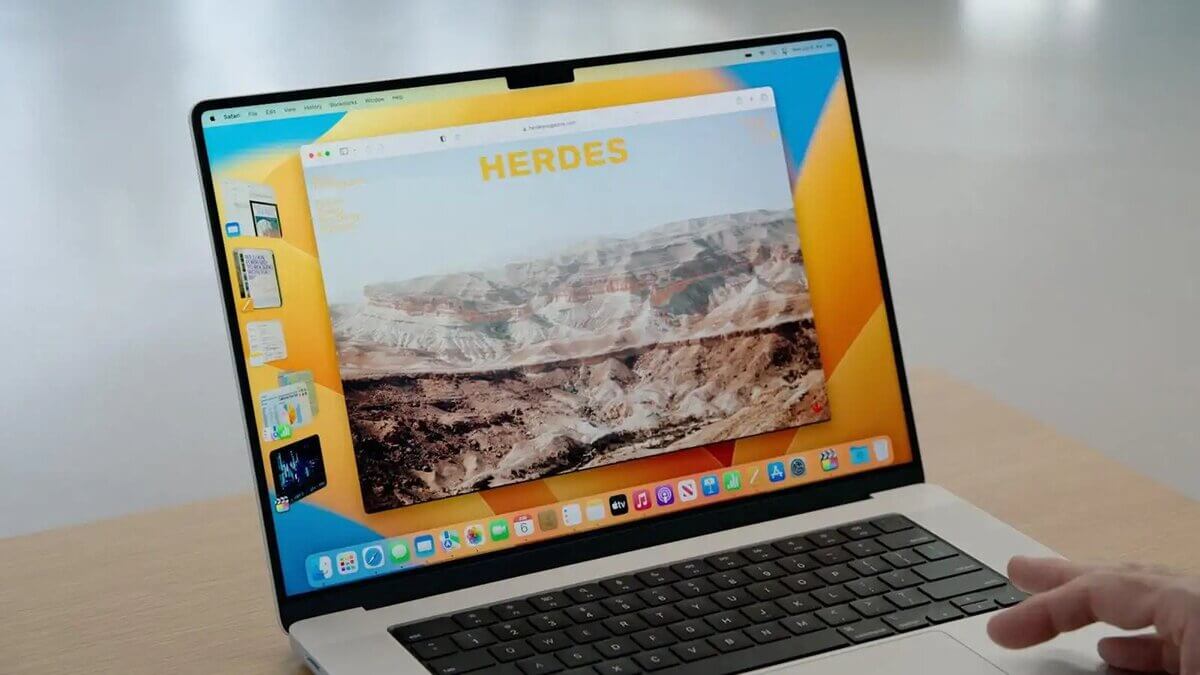
When you buy a new Mac, such as the MacBook Pro (2023), it comes with the latest operating system, macOS Ventura, which operates based on the default settings. However, these settings may not always match our personal preferences, needs, or expectations. Luckily, macOS Ventura makes it easy to customize your settings and prevent automatic updates.
How To Stop macOS from Automatically Installing App and Software Updates 

In this guide, we’ll be having a look at how to stop macOS from automatically installing app and software updates. With that, you can regain control over when you update your system.

advertisement

Basic Steps to Stop a Mac from installing updates Automatically

Step 1: Launch the System Settings app

First, you need to launch the System Settings app, which is where you’ll find the settings for software updates. You can access this app by clicking on the Apple icon in the top-left corner of your screen and selecting System Preferences.

Step 2: Tap on General

Next, you need to click on the General tab, which is where you’ll find the settings for automatic updates. You’ll see several options, including settings for Appearance, Sidebar, and Recent Items.

Step 3: Click on Software Update

Now, you need to click on the Software Update tab, which is where you’ll find the settings for automatic updates for macOS and app updates from the Mac App Store.

Step 4: Tap the (i) button towards the top right corner

Once you’re in the Software Update tab, you’ll see an information icon (i) towards the top right corner of the window. Click on this icon to access additional settings.

Step 5: Disable Install macOS updates and/or Install application updates from the App Store 

Now you can disable automatic updates by unchecking the boxes next to Install macOS updates and Install application updates from the App Store, based on your personal preferences. By doing so, your Mac won’t download or install any software or app updates automatically.

Step 6: Install updates manually after you review them

Once you disable automatic updates, you’ll need to review updates manually and install them at your convenience. When updates become available, you’ll receive a notification, and you can choose to install them by opening the System Settings app, clicking on Software Update, and following the instructions.

Note: If you change your mind and want to enable automatic updates again, you can follow the same steps above and check the boxes next to Install macOS updates and Install application updates from the App Store.

However, it’s important to note that you should not disable the Install Security Responses and system files toggle. This setting allows Apple to deliver critical security patches through automatic updates, which can protect your Mac from potential threats. All users are advised to apply these updates as soon as possible to ensure maximum security.

Final Words 

Disabling automatic updates on your Mac is an easy process that can help you take control of your system and avoid any potential issues caused by unexpected updates. By following the steps above, you can customize your settings and install updates manually, while still keeping your Mac secure with critical security patches

How to Mac macOS
Share. Facebook Twitter Pinterest LinkedIn Tumblr Email
Frank Ochaso

Related Posts

How to Use a Free Online Image Converter Easily

September 26, 2025

How to track people using Find My Device on Android

June 11, 2025

How to find someone on the Maps using an iPhone

June 9, 2025
Add A Comment
Leave A Reply

Recent Posts
  • How to Use a Free Online Image Converter Easily
  • Xiaomi starts rolling out stable Android 16 based on HyperOS 2
  • Galaxy A36 Android 16-based One UI 8 build spotted
  • Galaxy A15 One UI 8 build spotted on Samsung servers
  • Xiaomi 13T HyperOS 2.2 is now available for download
About Us
AdimorahBlog was founded in 2017 and has grown into a global brand in the past years. As we continue to expand, we will keep providing our readers with the best coverage on Xiaomi HyperOS updates and smartphone latest Android OS updates. We strive to become the update hub for all smartphones. Contact Us: info@adimorahblog.com
AdimorahBlog
Facebook X (Twitter) YouTube Telegram
  • Home
  • CONTACT US
  • ABOUT US
  • PRIVACY POLICY
© 2025 AdimorahBlog. Designed by ThemeSphere.

Type above and press Enter to search. Press Esc to cancel.