



Steam is a popular platform for gamers to purchase and play games online. However, sometimes users face issues with the installation and verification of games on Steam. One common issue is Steam getting stuck on the “verifying installation” process. This can be frustrating and time-consuming, but fortunately, there are several ways to fix this problem.
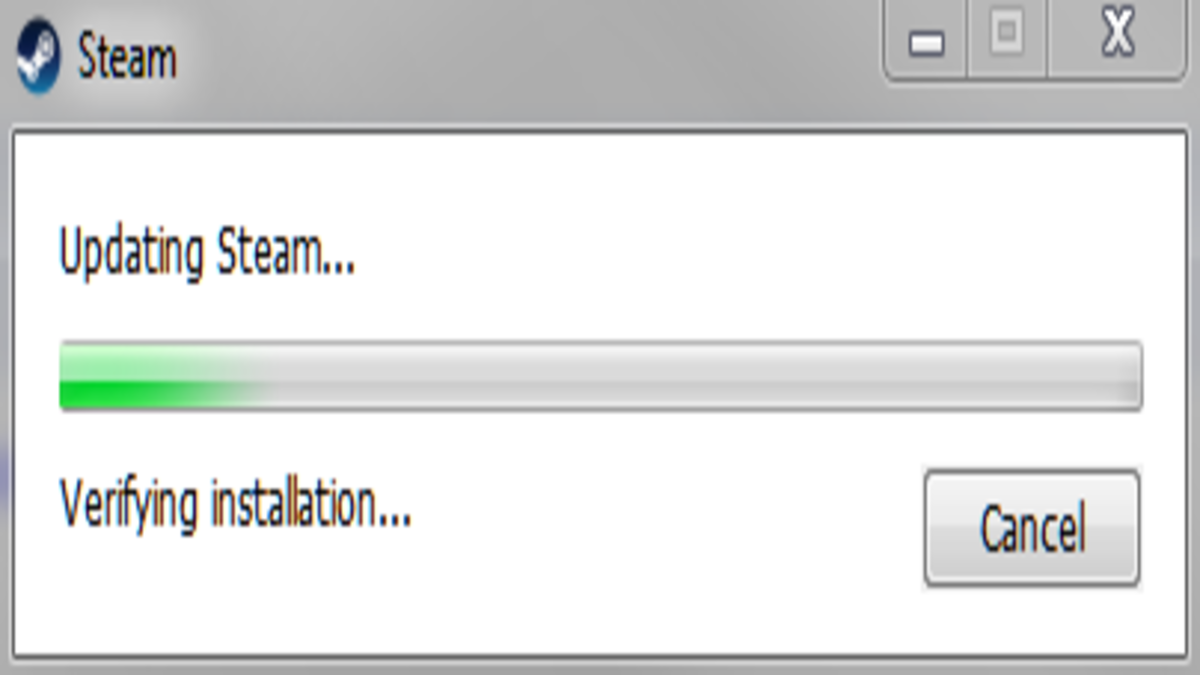
What causes the verifying Installation error on Steam
The “verifying installation” error on Steam can be caused by various reasons, such as corrupt or missing game files, network connectivity issues, conflicting software or settings, and even server maintenance or downtime on Steam’s end. Sometimes, the error can also be due to outdated drivers or incompatible hardware. In most cases, the issue can be resolved by trying the solutions mentioned above.
Also Read: How to Use Technology to Improve Your Gaming Experience
Fix Steam stuck on verifying Installation
1. Restart Steam
The first thing you should try is to restart Steam. Close the program and reopen it. Then, try verifying the installation again. This simple step can often solve the problem.
2. Clear Download Cache
If restarting Steam doesn’t work, you can try clearing the download cache. To do this, follow these steps:
- Open Steam and click on “Steam” in the top left corner.
- Click on “Settings.”
- Click on “Downloads.”
- Click on “Clear Download Cache.”
Once you have cleared the download cache, try verifying the installation again.
3. Check Antivirus Software
Sometimes antivirus software can interfere with Steam’s installation and verification process. If you have antivirus software installed on your computer, try disabling it temporarily and see if that solves the problem. If it does, you may need to add an exception for Steam in your antivirus settings.
4. Verify Integrity of Game Files
If none of the above solutions work, you can try verifying the integrity of game files. To do this, follow these steps:
- Open Steam and go to your library.
- Right-click on the game that is stuck on “verifying installation.”
- Click on “Properties.”
- Click on the “Local Files” tab.
- Click on “Verify Integrity of Game Files.”
Steam will then check the game files and repair any that are corrupt or missing.
5. Reinstall Steam
If none of the above solutions work, you may need to reinstall Steam. To do this, follow these steps:
- Uninstall Steam from your computer.
- Download the latest version of Steam from the official website.
- Install Steam on your computer.
- Log in to your account and try verifying the installation again.
Conclusion
Steam getting stuck on “verifying installation” can be frustrating, but there are several ways to fix the problem. Restarting Steam, clearing the download cache, checking antivirus software, verifying the integrity of game files, and reinstalling Steam are all potential solutions. Try each one until you find the one that works for you.
To get our latest news once they’re published, please follow us on Google News, Telegram, Facebook, and Twitter. We cover general tech news and are the first to break the latest MIUI update releases. Also, you get issues-solving “How To” posts from us.
