



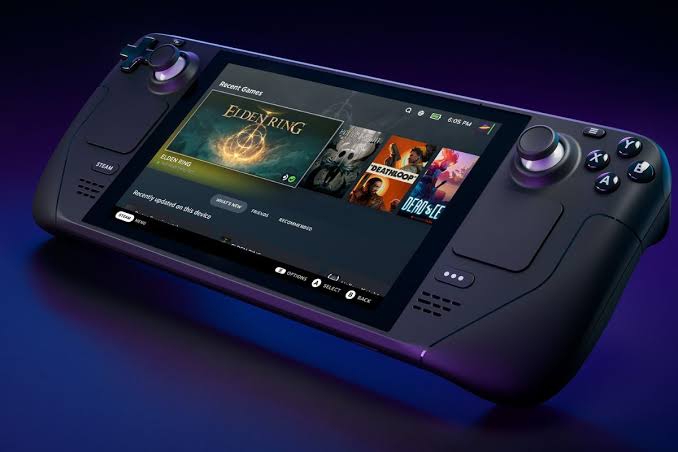
If you own a Steam Deck or are considering purchasing one, you’re probably aware that it’s more of a mini PC than a portable console. It runs SteamOS, which is based on Arch Linux, and users can still access it. You have complete control over the program’s interface, and there’s nothing stopping you from installing Windows if you choose.
However, you will most likely want to listen to music while playing. Fortunately, installing Spotify on Steam Deck is easy. In this guide, we’ll show you how to install Spotify on the Steam Deck so you can get started easily.
How To Install Spotify on the Steam Deck
Installing Spotify on the Steam Deck is pretty much easy, thanks to the built-in Discover app store. Before you begin, keep in mind that any apps or games you install outside of the official Steam Deck store will be installed on internal storage rather than your microSD card or any other external devices. Check that you have adequate space on the primary eMMC SSD, the size of which is determined by the Steam Deck model you picked (64GB, 256GB, or 512GB).
Bearing that in mind, here are the steps to follow;
- Press the Steam button on the left to access the fast menu.
- Scroll down the list to find and select Power.
- Navigate to and select Switch to Desktop from the power menu.
- Alternatively, you can quickly reach the power menu by temporarily holding down the power button. Regardless of the mode you select, a “Switching to Desktop” notification will appear. After a short delay, the Steam Deck will boot into its Linux desktop environment, just like any other PC.
- Locate and launch the Discover app, which is normally pinned to your taskbar and has a blue shopping bag icon. Otherwise, you may find it in the Applications menu’s System tab.
- Look for Spotify using the search option in the top-left corner of Discover.
- Locate Spotify in the results list and click Install.
Note: It’s a little inconvenient to have to boot into desktop mode every time you want to use Spotify. Follow these extra steps to have them display alongside your usual collections in the standard SteamOS Deck UI.
- Return to the desktop version of Steam. Navigate to the Games tab in the top-left menu and click Add a Non-Steam Game to My Library.
- A new window titled Add a Game with a list of your applications will emerge. Navigate through this list until you reach Spotify.
- Check the box to the left of the program’s name, then click Add selected programs..
- Exit the Steam application and launch the Return to Gaming Mode shortcut from the desktop or applications menu.
Wrapping it Up
There you have it on how to install Spotify on the Steam Deck.It may appear unusual to include Spotify as a game, but it is the best option to have quick access to the app on Steam Deck. You can now listen to your playlists while driving long distances, and it even works wonderfully in the background while playing games provided you use one of the best PC gaming headphones. If you subscribe to Spotify Premium, you can also download playlists for offline listening on long journeys without internet connection.
