


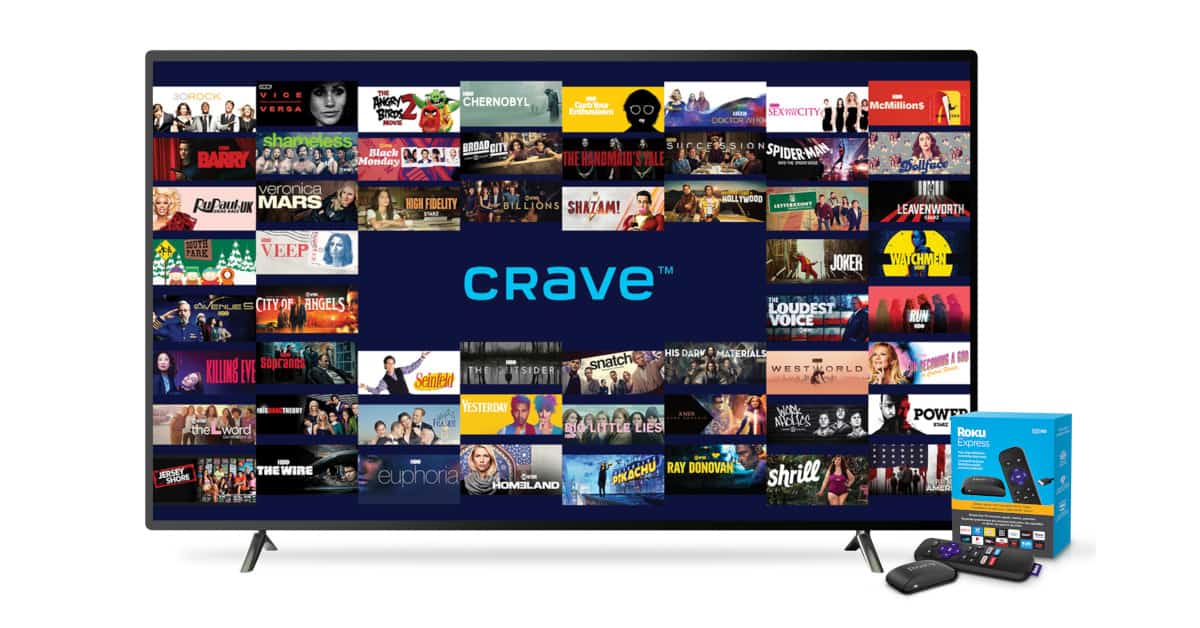
Crave is a popular streaming platform that offers a wide variety of premium content, including movies, TV shows, and original programming. With a subscription, you can enjoy this content on a variety of devices, including your television, computer, tablet, or mobile phone. However, to activate Crave on all of your devices can sometimes be a bit confusing.
In this guide, we’ll walk through the steps on how to activate Crave on all of your devices, so you can start streaming your favorite content without any hassle. Whether you’re a new or existing subscriber, this guide will help you get the most out of your Crave experience.
How To on Your Device
To activate Crave on your device, follow these steps:
- Launch the Crave app on your device
- Click on the Sign In button in the Account Management menu
- Get the activation code by either clicking the activation code or by playing any video on the Crave app
- Based on your device, choose the appropriate activation link:
- Apple TV: crave.ca/appletv
- Roku: crave.ca/roku
- Fire TV: crave.ca/firetv
- Android TV: crave.ca/androidtv
- Samsung Smart TV: crave.ca/newsamsung
- PlayStation: crave.ca/activate
- Sign in to your Crave account. If you are a TV subscriber, click the “I’m a TV Subscriber” button and sign in with your TV provider account
- Enter the activation code and click the Submit button
- You should see a “Success!” message displayed on your screen. You can now start watching all the Crave video content.
How To Install / activate Crave on Streaming Devices
Crave is available for various streaming devices, smart TVs, and gaming consoles. To install the app, follow these steps for each device:
Amazon Fire TV
- Launch Amazon Firestick and wait for the home screen to load
- Select Search under the Find tab
- Type “Crave” in the search bar
- Select the Crave app from the results and click “Get”
- Click “Open” to launch the Crave app
Apple TV
- Launch the App Store on your Apple TV home screen
- Click the Search icon at the top of the homepage
- Type “Crave” and select the app
- Click “Get” to install the Crave app on your Apple TV
- Open the Crave app to activate it
Roku
- Open the Streaming Channels section from the Roku menu
- Select Search Channels and enter “Crave”
- Select the Crave app from the list of results
- Click on the “Add channel” button
- Click on “Go To Channel” to launch the Crave app
Android TV
- Launch the Google Play Store from the home screen of Android TV
- Click the Search icon and search for the “Crave” app
- Select the Crave app from the search results
- Tap on the “Install” button
- Open the Crave app to get the activation code
Samsung SmartTV
- Open the main menu and click on the Apps icon to open the Samsung Smart Hub
- Type “Crave” in the search box and select the app
- Click on the “Install” button
- The Crave app will now be installed on your Samsung Smart TV
PlayStation
- Turn on your PlayStation and wait for the home screen to appear
- Launch the PlayStation Store on your PS4 or PS5 console
- Click on the Search icon and type “Crave”
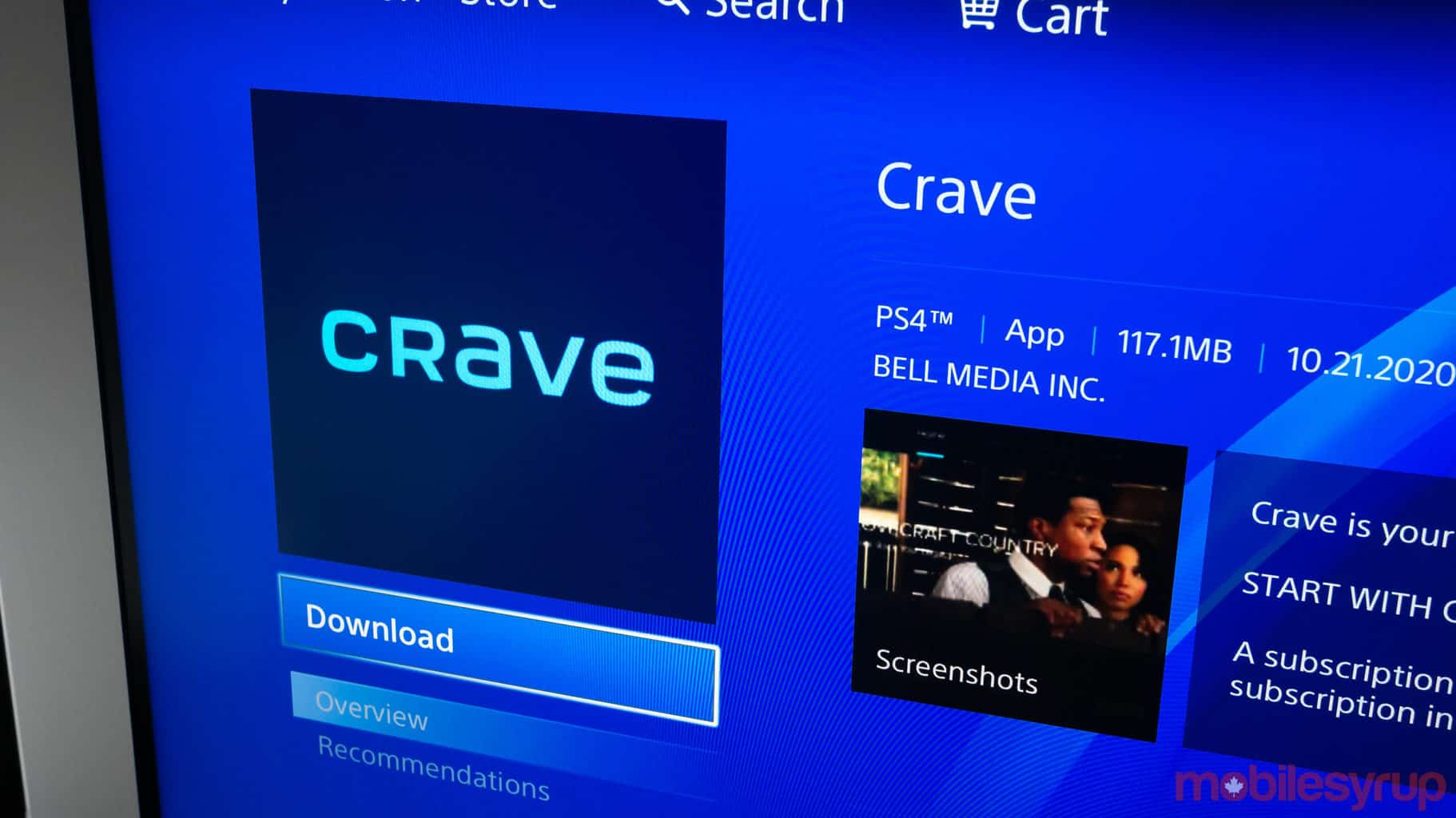
- Choose Crave from the list of suggestions and click on “Download”
- Open the Crave app and get the activation code
Wrapping It Up
Activating Crave on all of your devices is a simple and straightforward process that can be completed in just a few steps. By following this guide, you’ll be able to start streaming your favorite content on all of your devices in no time. With Crave, you’ll have access to a wide variety of premium content, including movies, TV shows, and original programming. So, start activating today and enjoy all that Crave has to offer.
