


Why does my laptop hibernate when I’m playing games? And how can I fix it? You will learn how to fix laptop hibernating when playing games in this guide.
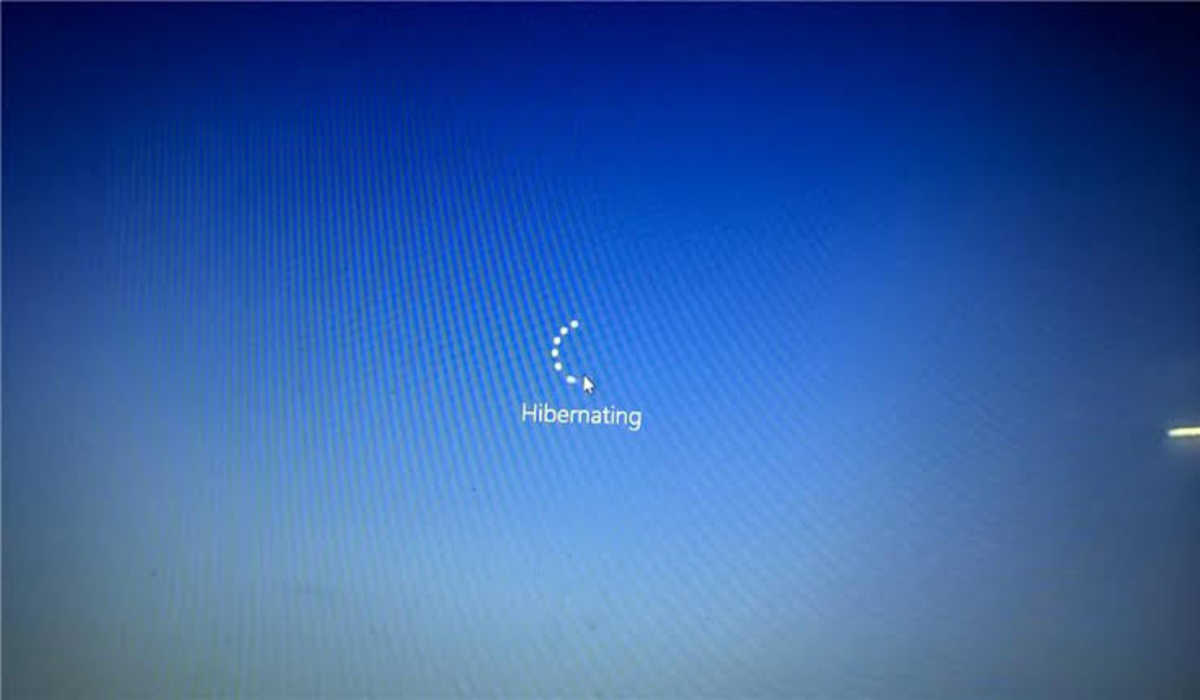
If you’re a gamer and your laptop keeps going to sleep while you’re playing your favorite game, it can be incredibly frustrating! If you’ve ever been frustrated by this (and who hasn’t?), here are some possible reasons on why this could be happening, and tips on how to fix laptop hibernating when playing games so that you can keep gaming away!
How to Fix Laptop Hibernating When Playing Games
1. Your power settings is not correctly set up
It is possible that your laptop goes into hibernating mode because the power options are not setup properly.
In Windows 10
Right-click the battery icon in the bottom-left corner and click on Power options. The page that will be displayed is a menu that let’s you choose the power plan of your laptop. You want to make sure that the power plan is set to the highest possible since you are playing games with it. You can click on Change plan to change the time your laptop goes into hibernation mode.
In Windows 11
In the bottom-left corner of your screen, right-click on the battery icon and select Power and sleep settings.
From the drop-down menu beside Power mode, select the Best performance option. This will ensure the smooth running of your computer as possible.
Now click on the Screen and sleep option and change the time limits that it will take before your laptop goes to sleep.
2. Your CPU may be too hot
One reason your laptop might be hibernating while you’re playing games is that you’re using too much CPU at once which may result in the hotness of it. To fix this, try closing any unnecessary programs and windows before starting your game. You could also try lowering the game’s graphics settings to relieve some of the strain on your computer. Also, make sure nothing is blocking the air vents to allow the outflow of air, and occasionally take time to clean your laptop.
3. Update drivers regularly
If you’re a PC gamer, you know that one of the most frustrating things that can happen is when your laptop hibernates in the middle of a game. Not only do you lose your progress, but it’s also a pain to have to restart the game and try to pick up where you left off. The problem could be that you need an updated driver for your graphics card. Keep an eye on Windows Update or your computer manufacturer’s website for new drivers, and install them as soon as they become available.
4. Get rid of bloatware
You may have noticed that your laptop starts to act a little sluggish after you’ve had it for awhile. This is because of all the bloatware that comes installed on new laptops. Bloatware is unnecessary programs that take up space on your hard drive and can slow down your computer. You can get rid of bloatware by uninstalling the programs you don’t use. To do this, go to Control Panel > Programs and Features. From there, select any program you want to uninstall and click Uninstall/Change. If you are not sure which program is causing the problem, check what programs are taking up the most space on your hard drive using Disk Cleanup. Clicking Clean Up System Files will help find out which ones might be slowing down your computer without taking up much space like temp files and old Windows updates.
5. Your Laptop Battery has gone weak
One possible reason your laptop is hibernating while you’re playing games could be because the battery is too worn out. When a battery gets too old, it can’t hold a charge as well as it used to and will cause your device to shut down unexpectedly. If your laptop allows for replacing parts, then you can try replacing the battery.
6. You are playing a glitched game
If the hibernation only occurs when you are playing a certain game, then that game is the culprit of your hibernating PC. This can likely occur when you installed a mod game that isn’t compatible with your computer. You can either change the games settings to prevent the hibernation, or uninstall the game altogether.
And that’s it. If you have been having trouble playing your favorite games because of constant hibernating interruptions, this article has shown you how to fix laptop hibernating when playing games.
