

Close Menu
AdimorahBlogAdimorahBlog
  • Home
  • ABOUT US
  • CONTACT US
  • PRIVACY POLICY
  • XIAOMI
    • Xiaomi apps
      • POCO beta testers
    • Xiaomi News
    • Xiaomi Pad
    • Redmi
    • POCO
  • MIUI updates
    • MIUI 14
    • MIUI beta testers
    • MIUI launcher
  • Google
    • Google Camera
    • Pixel
    • Google chrome
  • Samsung
    • OneUI news
    • Samsung News
    • Samsung Galaxy Watch
  • Android
    • Android 13
    • Android 14
    • Android 15
    • Android Auto
  • Smartphone
    • Apple
    • Samsung
    • Pixel
    • XIAOMI
    • Redmi
    • POCO
    • OnePlus
    • Sony
    • Fairphone
    • OnePlus
  • How To
  • Gaming
    • Video gaming
Facebook X (Twitter) Instagram
AdimorahBlogAdimorahBlog
Subscribe
  • Home
  • ABOUT US
  • CONTACT US
  • PRIVACY POLICY
  • XIAOMI
    • Xiaomi apps
      • POCO beta testers
    • Xiaomi News
    • Xiaomi Pad
    • Redmi
    • POCO
  • MIUI updates
    • MIUI 14
    • MIUI beta testers
    • MIUI launcher
  • Google
    • Google Camera
    • Pixel
    • Google chrome
  • Samsung
    • OneUI news
    • Samsung News
    • Samsung Galaxy Watch
  • Android
    • Android 13
    • Android 14
    • Android 15
    • Android Auto
  • Smartphone
    • Apple
    • Samsung
    • Pixel
    • XIAOMI
    • Redmi
    • POCO
    • OnePlus
    • Sony
    • Fairphone
    • OnePlus
  • How To
  • Gaming
    • Video gaming
AdimorahBlogAdimorahBlog
Home | MIUI update | Xiaomi News | Chromebook | How to Turn On Chrome OS Developer Mode
Chromebook

How to Turn On Chrome OS Developer Mode

Anna BrookesBy Anna BrookesAugust 3, 2022Updated:August 3, 2022No Comments3 Mins Read
Facebook Twitter Pinterest LinkedIn Tumblr Email
Windows
Share
Facebook Twitter LinkedIn Pinterest Email

Discover how turn on Chrome OS Developer Mode to get root access to your computer and add new features.

Turning on developer mode gives you root access to your Chromebook – it lets you do things that aren’t normally possible on Chrome OS, like installing Linux apps, running terminal commands, and changing certain system settings. You can install developer tools from the Chrome Web Store, run your own code, or change system settings with the dev tools installed. This article will show you how to turn on Developer Mode on Chrome OS so you can get started creating new things with your Chromebook.

advertisement

Before you proceed though, here’s a fair warning: turning on developer mode makes your Chromebook susceptible to security breaches and may void its warranty. So only proceed if you really know what you are doing. We at Adimorahblog, will not be liable for any damage caused to your computer.

And before you begin, make sure you back up your files and data stored on your device.

With the warnings out of the way, here’s how to turn on Chrome OS Developer Mode.

How to turn on Chrome OS Developer Mode?

  • Power down your computer

Before you can enable Developer Mode on your Chromebook, you first need to power it down. To do this, press and hold the Power button for about 10 seconds. This will force your Chromebook to shut down.

  • Hold the “Esc” key , “Refresh” key and Power button simultaneously. Let go of them when your Chromebook starts to power on
  • The recovery process will be displayed on the screen. Select Advanced Options and then select Developer Mode (or press Ctrl+D)
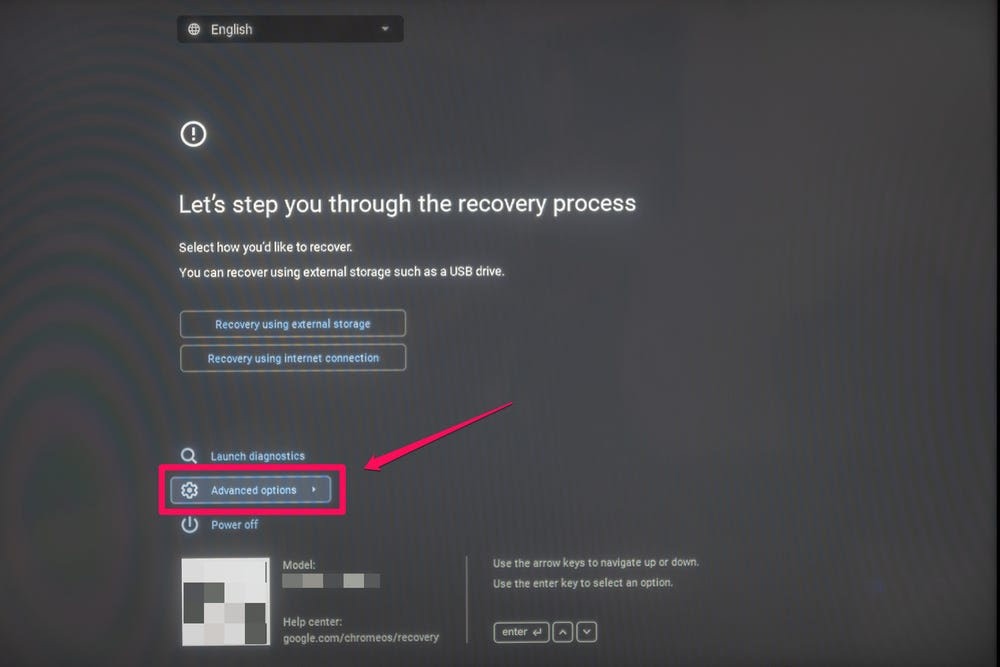
How to turn on chrome os developer mode
img source
  • A message asking you to verify the OS will appear, press “Enter”

Now your Chromebook should start in Developer Mode and you will be able to now access the extra features. Whenever you need to start it up in Developer mode, press the Ctrl D.

How to turn off Developer Mode on Chrome OS

If you decide to switch back to normal Chromebook functionality, back up your files first, then follow the below steps

  1. Shut down your Chromebook.
  2. Power on your Chromebook.
  3. When the “OS verification is off” message comes up, press the space bar.
  4. The Chromebook should now reset in factory mode and complete the regular setup process. And then, return to its normal configuration.

There you have it! The process of turning on developer mode on Chrome OS, and turning it off as well has been revealed. You can now go ahead and tweak the settings, and add tools as a developer. Just be sure to know what you are doing so you don’t end up causing harm to your computer.

Share. Facebook Twitter Pinterest LinkedIn Tumblr Email
Anna Brookes

Related Posts

How to Use a Free Online Image Converter Easily

September 26, 2025

How to track people using Find My Device on Android

June 11, 2025

How to find someone on the Maps using an iPhone

June 9, 2025
Add A Comment
Leave A Reply

Recent Posts
  • How to Use a Free Online Image Converter Easily
  • Xiaomi starts rolling out stable Android 16 based on HyperOS 2
  • Galaxy A36 Android 16-based One UI 8 build spotted
  • Galaxy A15 One UI 8 build spotted on Samsung servers
  • Xiaomi 13T HyperOS 2.2 is now available for download
About Us
AdimorahBlog was founded in 2017 and has grown into a global brand in the past years. As we continue to expand, we will keep providing our readers with the best coverage on Xiaomi HyperOS updates and smartphone latest Android OS updates. We strive to become the update hub for all smartphones. Contact Us: info@adimorahblog.com
AdimorahBlog
Facebook X (Twitter) YouTube Telegram
  • Home
  • CONTACT US
  • ABOUT US
  • PRIVACY POLICY
© 2025 AdimorahBlog. Designed by ThemeSphere.

Type above and press Enter to search. Press Esc to cancel.