

Close Menu
AdimorahBlogAdimorahBlog
  • Home
  • ABOUT US
  • CONTACT US
  • PRIVACY POLICY
  • XIAOMI
    • Xiaomi apps
      • POCO beta testers
    • Xiaomi News
    • Xiaomi Pad
    • Redmi
    • POCO
  • MIUI updates
    • MIUI 14
    • MIUI beta testers
    • MIUI launcher
  • Google
    • Google Camera
    • Pixel
    • Google chrome
  • Samsung
    • OneUI news
    • Samsung News
    • Samsung Galaxy Watch
  • Android
    • Android 13
    • Android 14
    • Android 15
    • Android Auto
  • Smartphone
    • Apple
    • Samsung
    • Pixel
    • XIAOMI
    • Redmi
    • POCO
    • OnePlus
    • Sony
    • Fairphone
    • OnePlus
  • How To
  • Gaming
    • Video gaming
Facebook X (Twitter) Instagram
AdimorahBlogAdimorahBlog
Subscribe
  • Home
  • ABOUT US
  • CONTACT US
  • PRIVACY POLICY
  • XIAOMI
    • Xiaomi apps
      • POCO beta testers
    • Xiaomi News
    • Xiaomi Pad
    • Redmi
    • POCO
  • MIUI updates
    • MIUI 14
    • MIUI beta testers
    • MIUI launcher
  • Google
    • Google Camera
    • Pixel
    • Google chrome
  • Samsung
    • OneUI news
    • Samsung News
    • Samsung Galaxy Watch
  • Android
    • Android 13
    • Android 14
    • Android 15
    • Android Auto
  • Smartphone
    • Apple
    • Samsung
    • Pixel
    • XIAOMI
    • Redmi
    • POCO
    • OnePlus
    • Sony
    • Fairphone
    • OnePlus
  • How To
  • Gaming
    • Video gaming
AdimorahBlogAdimorahBlog
Home | MIUI update | Xiaomi News | How To | How to Use Face or Photo Unblur with Pixel Phones
How To

How to Use Face or Photo Unblur with Pixel Phones

Anna BrookesBy Anna BrookesOctober 15, 2022No Comments3 Mins Read
Facebook Twitter Pinterest LinkedIn Tumblr Email
Face unblur with Pixel
Share
Facebook Twitter LinkedIn Pinterest Email

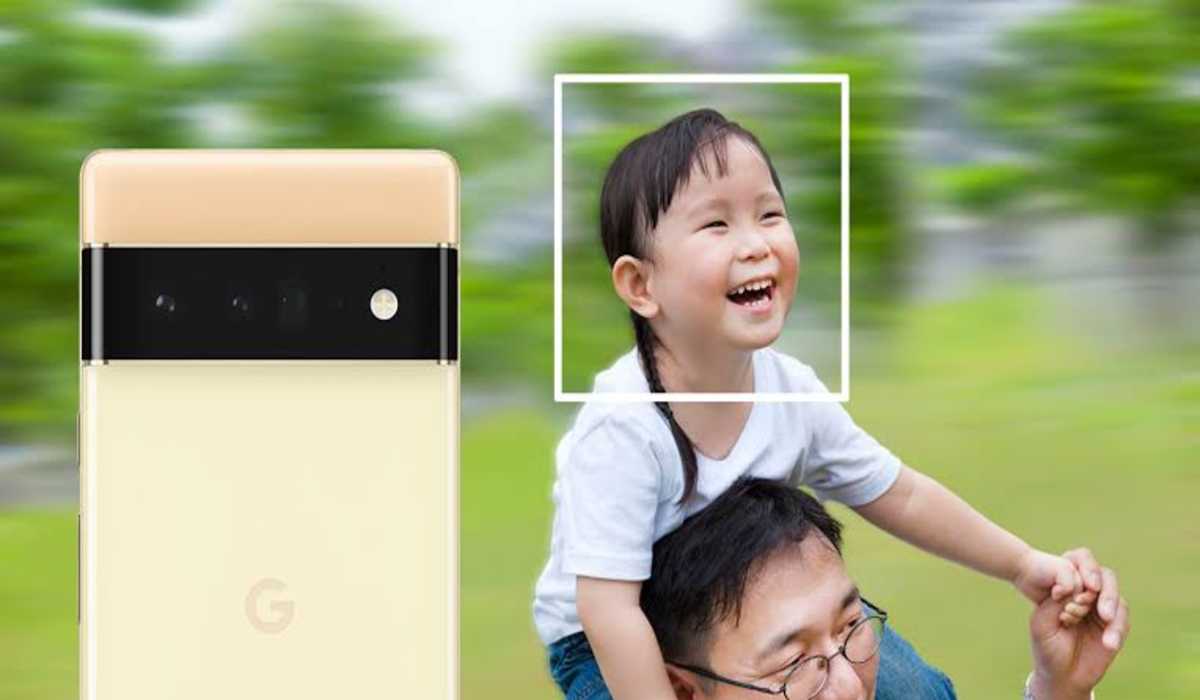
Google’s smartphone cameras usually come loaded with several capabilities and features, one of which is Face Unblur. This feature was introduced with the Pixel 6 series, and Google has since improved it and added Photo Unblur with the Pixel 7 series. If you’re not sure how to use these features, we’re here to help you today by walking you through the process of cleaning up blurry images that you may have captured with your Pixel phone.

How to use face or photo unblur with Pixel phones

With Face Unblur, you don’t have to worry about taking blurry pictures of your friends and family anymore! The software automatically employs a variety of techniques to remedy fuzzy facial images, so you can just sit back and enjoy the moment.

advertisement

How to Use Face or Photo Unblur with Pixel Phones

The Face Unblur feature on Google Pixel automatically detects when the shutter speed is slow or when the subject is moving about, it then activates the Unblur feature to take multiple pictures. Then, it stitches them all together and uses machine learning to enhance your subjects’ faces.

How does Photo Unblur in Google Pixel work?

Although advertised as a manual tool, the Photo Unblur feature is automatically applied to some images. For now, though, it’ll only be available for Pixel 7 series devices. To access the feature, go into Google Photos and find any blurry images. Then, find Photo Unblur in the Edit settings. Google Photos might also recommend the feature to you.

How to turn on Face or Photo Unblur?

There is no need to manually toggle the Photo Unblur setting on or off, as it will automatically activate when the compatible device detects it is required. Most images taken with the Pixel 7 series will already have Photo Unblur applied. However, if you choose to disable this function in Google Photos, you can do so at any time.

What device supports Face Unblur?

Face Unblur is available for Google Pixel 6 series phones or newer. This includes the Pixel 6 series, Pixel 6a, and Pixel 7 series.

What device supports Photo Unblur

This feature is only available on the Google Pixel 7 and Pixel 7 Pro. Photo Unblur can only be used with Google Photos.

Can Photo Unblur be used on any picture?

Yes. As long as you are with a phone that supports Photo Unblur, you can fix any blurry photo using Google Photos. It even works on older images shot with any camera.

Share. Facebook Twitter Pinterest LinkedIn Tumblr Email
Anna Brookes

Related Posts

How to Use a Free Online Image Converter Easily

September 26, 2025

How to track people using Find My Device on Android

June 11, 2025

How to find someone on the Maps using an iPhone

June 9, 2025
Add A Comment
Leave A Reply

Recent Posts
  • How to Use a Free Online Image Converter Easily
  • Xiaomi starts rolling out stable Android 16 based on HyperOS 2
  • Galaxy A36 Android 16-based One UI 8 build spotted
  • Galaxy A15 One UI 8 build spotted on Samsung servers
  • Xiaomi 13T HyperOS 2.2 is now available for download
About Us
AdimorahBlog was founded in 2017 and has grown into a global brand in the past years. As we continue to expand, we will keep providing our readers with the best coverage on Xiaomi HyperOS updates and smartphone latest Android OS updates. We strive to become the update hub for all smartphones. Contact Us: info@adimorahblog.com
AdimorahBlog
Facebook X (Twitter) YouTube Telegram
  • Home
  • CONTACT US
  • ABOUT US
  • PRIVACY POLICY
© 2025 AdimorahBlog. Designed by ThemeSphere.

Type above and press Enter to search. Press Esc to cancel.