

Close Menu
AdimorahBlogAdimorahBlog
  • Home
  • ABOUT US
  • CONTACT US
  • PRIVACY POLICY
  • XIAOMI
    • Xiaomi apps
      • POCO beta testers
    • Xiaomi News
    • Xiaomi Pad
    • Redmi
    • POCO
  • MIUI updates
    • MIUI 14
    • MIUI beta testers
    • MIUI launcher
  • Google
    • Google Camera
    • Pixel
    • Google chrome
  • Samsung
    • OneUI news
    • Samsung News
    • Samsung Galaxy Watch
  • Android
    • Android 13
    • Android 14
    • Android 15
    • Android Auto
  • Smartphone
    • Apple
    • Samsung
    • Pixel
    • XIAOMI
    • Redmi
    • POCO
    • OnePlus
    • Sony
    • Fairphone
    • OnePlus
  • How To
  • Gaming
    • Video gaming
Facebook X (Twitter) Instagram
AdimorahBlogAdimorahBlog
Subscribe
  • Home
  • ABOUT US
  • CONTACT US
  • PRIVACY POLICY
  • XIAOMI
    • Xiaomi apps
      • POCO beta testers
    • Xiaomi News
    • Xiaomi Pad
    • Redmi
    • POCO
  • MIUI updates
    • MIUI 14
    • MIUI beta testers
    • MIUI launcher
  • Google
    • Google Camera
    • Pixel
    • Google chrome
  • Samsung
    • OneUI news
    • Samsung News
    • Samsung Galaxy Watch
  • Android
    • Android 13
    • Android 14
    • Android 15
    • Android Auto
  • Smartphone
    • Apple
    • Samsung
    • Pixel
    • XIAOMI
    • Redmi
    • POCO
    • OnePlus
    • Sony
    • Fairphone
    • OnePlus
  • How To
  • Gaming
    • Video gaming
AdimorahBlogAdimorahBlog
Home | MIUI update | Xiaomi News | How To | How to override the automatic date and time selection on macOS
How To

How to override the automatic date and time selection on macOS

Anna BrookesBy Anna BrookesApril 14, 2023No Comments3 Mins Read
Facebook Twitter Pinterest LinkedIn Tumblr Email
How to override the automatic date and time selection on macOS
Share
Facebook Twitter LinkedIn Pinterest Email

If you own a Mac running macOS Ventura or any other recent version of the operating system, you may have noticed that the date, time, and time zone are set automatically. This can be incredibly convenient as it eliminates the need for manual adjustments, especially when traveling between different time zones. However, there are times when you may want to override the automatic date and time selection on your Mac. This could be for testing purposes or simply to have more control over your machine. In this blog post, we’ll go through the steps to override the automatic date and time selection on macOS.
override the automatic date and time selection on macOS

How to override the automatic date and time selection on macOS

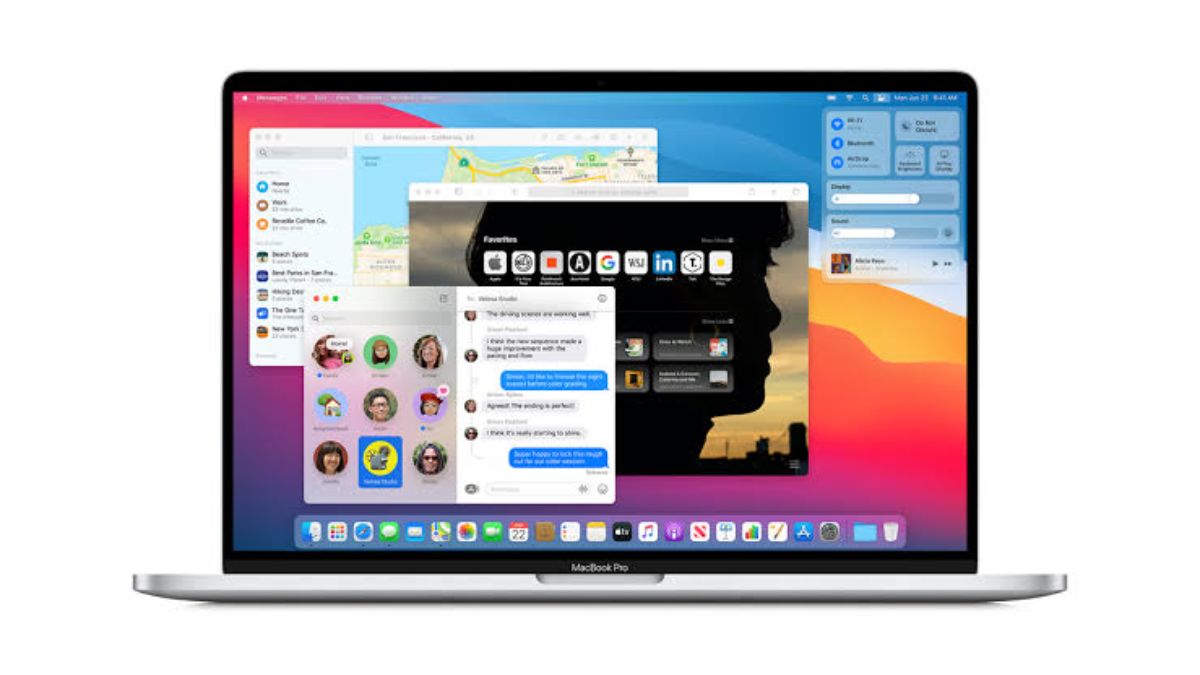
Step 1: Launch the System Settings app: To get started, launch the System Settings app on your Mac. You can do this by clicking on the Apple icon on the top left corner of your screen and selecting “System Preferences” from the drop-down menu.

advertisement

Step 2: Navigate to the General section: Once you’re in the System Settings app, click on the “General” section. This will take you to a new window where you can adjust various settings related to your Mac.

Step 3: Choose Date & Time: Within the General section, look for the “Date & Time” option and click on it.

Step 4: Disable automatic settings: By default, the “Set time and date automatically” and “Set time zone automatically using your current location” toggles will be turned on. To override the automatic date and time selection, you’ll need to turn off both toggles.

Step 5: Manually set time, date, and time zone: Now that you’ve disabled the automatic settings, you can manually set the time, date, and time zone based on your personal preferences. Simply click on the “Set Date & Time” button and adjust the settings accordingly.

It’s worth noting that most average users won’t need to disable the automatic date and time selection feature. However, it’s great to have the option for those who want to have more control over their Mac. If you do decide to disable the automatic settings, be sure to keep your date and time in sync with your current location and time zone. This will ensure that your Mac continues to function properly and that you don’t encounter any unexpected issues.

To get our latest news once they’re published, please follow us on Google News, Telegram, Facebook, and Twitter. We cover general tech news and are the first to break the latest MIUI update releases. Also, you get issues-solving “How To” posts from us. 

How to macOS
Share. Facebook Twitter Pinterest LinkedIn Tumblr Email
Anna Brookes

Related Posts

How to Use a Free Online Image Converter Easily

September 26, 2025

How to track people using Find My Device on Android

June 11, 2025

How to find someone on the Maps using an iPhone

June 9, 2025
Add A Comment
Leave A Reply

Recent Posts
  • How to Use a Free Online Image Converter Easily
  • Xiaomi starts rolling out stable Android 16 based on HyperOS 2
  • Galaxy A36 Android 16-based One UI 8 build spotted
  • Galaxy A15 One UI 8 build spotted on Samsung servers
  • Xiaomi 13T HyperOS 2.2 is now available for download
About Us
AdimorahBlog was founded in 2017 and has grown into a global brand in the past years. As we continue to expand, we will keep providing our readers with the best coverage on Xiaomi HyperOS updates and smartphone latest Android OS updates. We strive to become the update hub for all smartphones. Contact Us: info@adimorahblog.com
AdimorahBlog
Facebook X (Twitter) YouTube Telegram
  • Home
  • CONTACT US
  • ABOUT US
  • PRIVACY POLICY
© 2026 AdimorahBlog. All Rights Reserved

Type above and press Enter to search. Press Esc to cancel.