

Close Menu
AdimorahBlogAdimorahBlog
  • Home
  • ABOUT US
  • CONTACT US
  • PRIVACY POLICY
  • XIAOMI
    • Xiaomi apps
      • POCO beta testers
    • Xiaomi News
    • Xiaomi Pad
    • Redmi
    • POCO
  • MIUI updates
    • MIUI 14
    • MIUI beta testers
    • MIUI launcher
  • Google
    • Google Camera
    • Pixel
    • Google chrome
  • Samsung
    • OneUI news
    • Samsung News
    • Samsung Galaxy Watch
  • Android
    • Android 13
    • Android 14
    • Android 15
    • Android Auto
  • Smartphone
    • Apple
    • Samsung
    • Pixel
    • XIAOMI
    • Redmi
    • POCO
    • OnePlus
    • Sony
    • Fairphone
    • OnePlus
  • How To
  • Gaming
    • Video gaming
Facebook X (Twitter) Instagram
AdimorahBlogAdimorahBlog
Subscribe
  • Home
  • ABOUT US
  • CONTACT US
  • PRIVACY POLICY
  • XIAOMI
    • Xiaomi apps
      • POCO beta testers
    • Xiaomi News
    • Xiaomi Pad
    • Redmi
    • POCO
  • MIUI updates
    • MIUI 14
    • MIUI beta testers
    • MIUI launcher
  • Google
    • Google Camera
    • Pixel
    • Google chrome
  • Samsung
    • OneUI news
    • Samsung News
    • Samsung Galaxy Watch
  • Android
    • Android 13
    • Android 14
    • Android 15
    • Android Auto
  • Smartphone
    • Apple
    • Samsung
    • Pixel
    • XIAOMI
    • Redmi
    • POCO
    • OnePlus
    • Sony
    • Fairphone
    • OnePlus
  • How To
  • Gaming
    • Video gaming
AdimorahBlogAdimorahBlog
Home | MIUI update | Xiaomi News | YouTube | How to Cancel or Pause Your YouTube TV Subscription
YouTube

How to Cancel or Pause Your YouTube TV Subscription

Anna BrookesBy Anna BrookesDecember 17, 2022No Comments3 Mins Read
Facebook Twitter Pinterest LinkedIn Tumblr Email
Youtube TV
Share
Facebook Twitter LinkedIn Pinterest Email

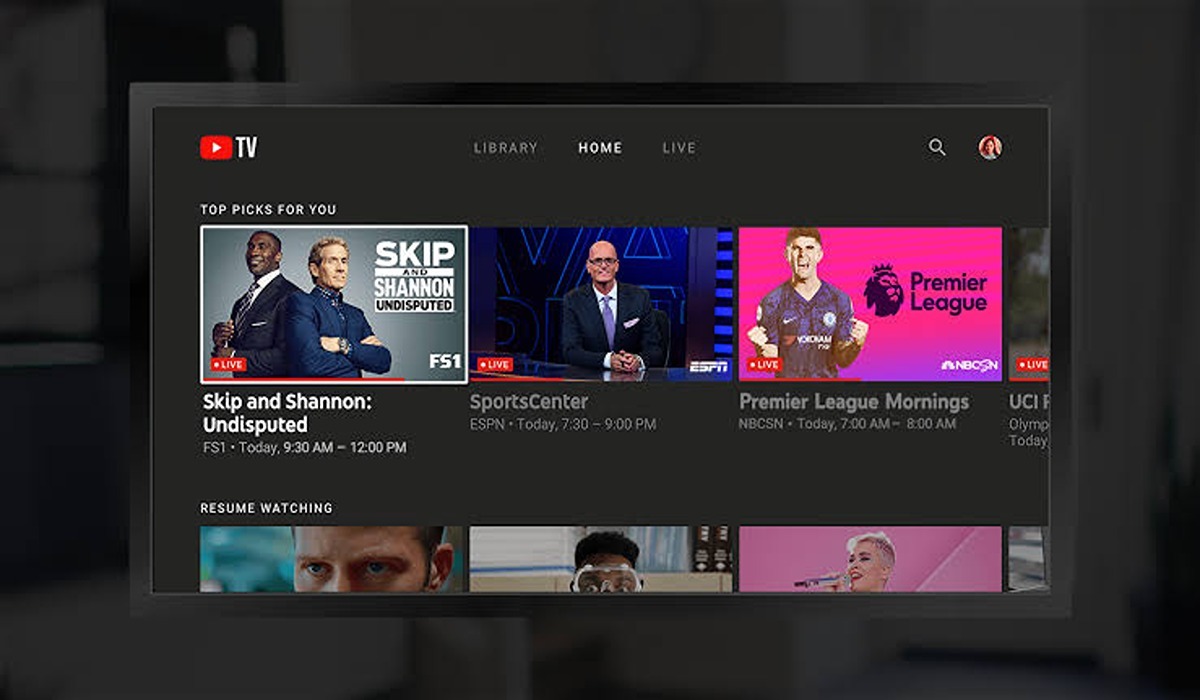
If you’ve decided to cancel or pause your YouTube TV subscription, you’re not alone. Many people decide to cancel or pause their subscription for various reasons, such as wanting to try out a different streaming service or simply no longer need the service. Whatever your reason may be, canceling or pausing your subscription is a straightforward process that can be done in a few simple steps.
How to Cancel or Pause Your YouTube TV Subscription

How to Cancel or Pause Your YouTube TV Subscription

Here’s how to cancel or pause your YouTube TV subscription on your desktop:

advertisement
  1. Sign in to your YouTube TV account.
  2. Click on your profile picture in the top right corner of the screen.
  3. Click on “Settings.”
  4. Scroll down and click on “Membership.”
  5. Click on “Manage”
  6. Click on “Cancel membership” or “Pause membership.”

To cancel or pause your YouTube TV subscription on the mobile app, follow these steps:

  1. Open the YouTube TV app on your mobile device.
  2. Tap on your account icon in the top right corner of the screen.
  3. Tap on “Settings” in the menu.
  4. Scroll down and tap on “Membership.”
  5. Click on “Manage”
  6. Tap on “Cancel membership” or “Pause membership.”

If you choose to cancel your membership, you’ll be asked to confirm your decision and provide a reason for canceling. Once you’ve completed the process, your membership will be canceled and you will no longer be charged for the service.

If you choose to pause your membership, you’ll be asked to select a pause duration. You can choose to pause your membership for a minimum of one month or a maximum of six months. During the pause period, you will not be charged for the service, and you can resume your membership at any time by simply signing in to your account and selecting “Resume membership.”

It’s important to note that when you cancel or pause your membership, you will lose access to all YouTube TV content and features. If you decide to cancel your membership, you will not be able to access any of your recorded shows or movies. If you decide to pause your membership, you will not be able to access any live or on-demand content.

Wrapping Up

In summary, canceling or pausing your YouTube TV subscription is a simple process that can be done in a few easy steps. Just sign in to your account, go to the “Membership” section of your settings, and choose either “Cancel membership” or “Pause membership.” If you decide to cancel your membership, you will lose access to all YouTube TV content and features, and if you decide to pause your membership, you will not be able to access any live or on-demand content during the pause period.

How to YouTube Tv app
Share. Facebook Twitter Pinterest LinkedIn Tumblr Email
Anna Brookes

Related Posts

How To Track Someone On Google Maps in 2025

April 25, 2025

How to Fix Cannot Connect to App Store on iPhone or iPad

March 2, 2025

How To Activate YouTube Kids on Smart TV

February 2, 2025
Add A Comment
Leave A Reply

Recent Posts
  • How to Use a Free Online Image Converter Easily
  • Xiaomi starts rolling out stable Android 16 based on HyperOS 2
  • Galaxy A36 Android 16-based One UI 8 build spotted
  • Galaxy A15 One UI 8 build spotted on Samsung servers
  • Xiaomi 13T HyperOS 2.2 is now available for download
About Us
AdimorahBlog was founded in 2017 and has grown into a global brand in the past years. As we continue to expand, we will keep providing our readers with the best coverage on Xiaomi HyperOS updates and smartphone latest Android OS updates. We strive to become the update hub for all smartphones. Contact Us: info@adimorahblog.com
AdimorahBlog
Facebook X (Twitter) YouTube Telegram
  • Home
  • CONTACT US
  • ABOUT US
  • PRIVACY POLICY
© 2025 AdimorahBlog. Designed by ThemeSphere.

Type above and press Enter to search. Press Esc to cancel.