


Windows 11 is the latest operating system from Microsoft that promises to revolutionize the way we use our computers. However, with the new features and enhancements comes the need to manage user accounts effectively. This is especially true if you’re using a shared device, or if you have multiple user accounts that you no longer need.
In this guide, we will walk you through the steps on how to delete a user account on Windows 11. Whether you’re an experienced computer user or just getting started, this guide will help you safely and securely delete a user account on Windows 11. Bearing that in mind, let’s kick thighs off.
How To Remove User. Accounts in Windows 11
It is important to backup your Windows files before removing user. accounts. Regular backups are a good practice, but it is especially crucial to make a backup before removing a user account in case of any issues. You can choose to save the backup on your hard drive, external drive, or even the cloud.
To begin the backup process, follow these steps:
- Go to the Start menu search bar and type “control panel” and select the best match.
- Click on System and Security.
- Click on Backup and Restore.
- Select “Set up backup.”
- Choose a backup destination and click on Next.
- Select “Let Windows Choose” and click on Next.
- Click on “Save settings and run backup.”
The backup process for your entire PC will start immediately upon completion of these steps
Note: When making a backup, ensure that it is saved on a separate drive from the one where Windows is installed.
Once the backup is complete, you can proceed with deleting your Windows user accounts using the Windows Settings.
1. Deleting User Accounts via Settings
To delete a user. account on Windows 11 via settings, follow the steps below;
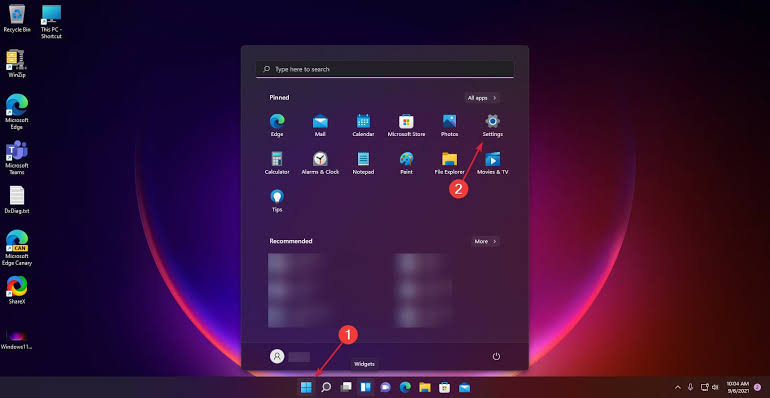
- Go to the Start menu search bar, type in “settings” and select the best match. Alternatively, you can use the shortcut Windows key + I.
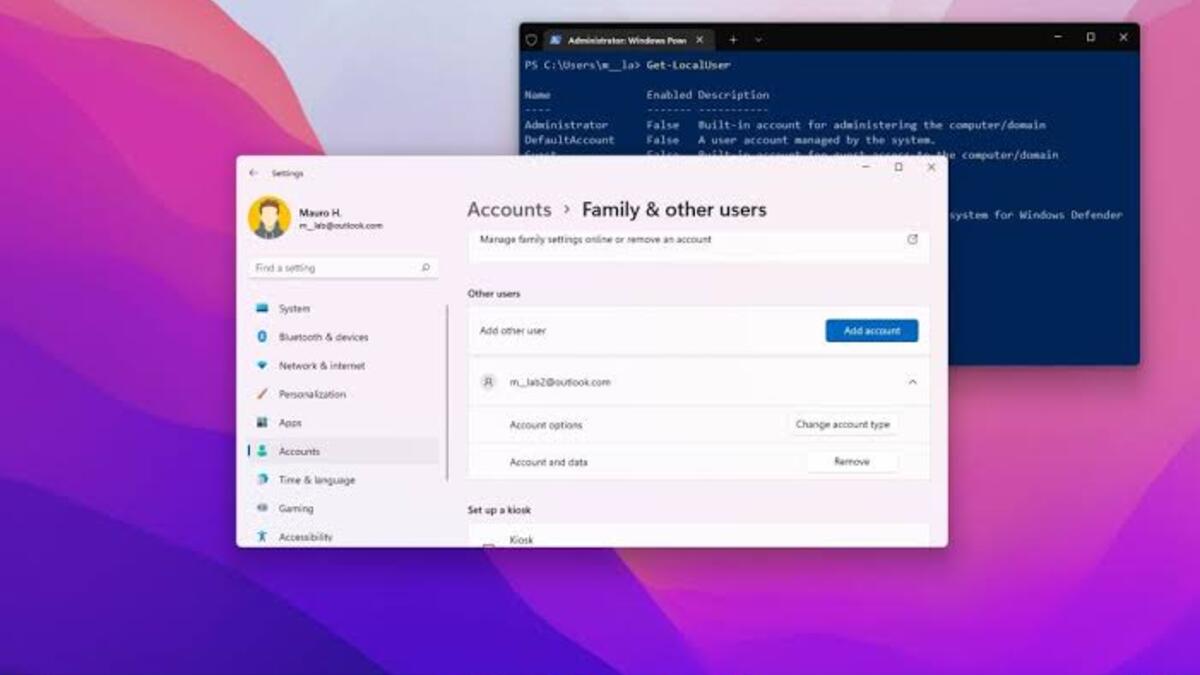
- Select Accounts > Family & other users.
- Choose the user account to be removed and click on Remove.
- Click on Delete account and data.
By following these steps, the user. account information will be successfully deleted.
2. Deleting User Accounts via Control Panel
If the method from the Windows Settings does not resolve the issue, try using the Control Panel as follows:
- Go to the Start menu and open the Control Panel.
- Click on User Accounts > Remove user accounts.
- Select the account to be removed and choose “Delete the account.”
- Finally, select “Delete files” and then “Delete Account.”
By following these steps, the account and all related files will be permanently deleted.
3. Deleting User Accounts via Command Prompt
The Command line is a text-based interface that allows for the convenient management and execution of all Windows programs through the use of keystrokes. Here’s how you can use it to delete a user account on Windows 11;
- Open the Start menu and search for ‘Command Prompt’. Run as administrator.
- In the Command Prompt, type ‘net user’ and hit enter to see all user accounts on your PC.
- Select the desired account to delete and type ‘net user <username> /delete’ and hit enter. Replace <username> with the account name.
Once completed, the account will be deleted immediately
Wrapping It Up
Deleting a user. account on Windows 11 is a simple process. By following the steps outlined in this guide, you can easily remove any user account that you no longer need. However, it’s important to note that once you do this, it will not delete the person’s Microsoft account, but it will remove their sign-in info and account data from your PC.
