



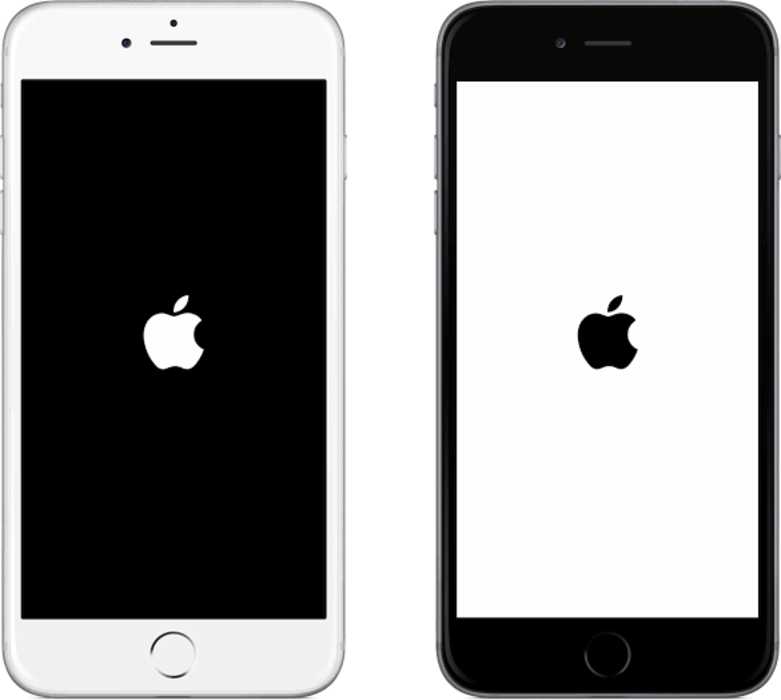
Having your iPhone stuck on Apple logo can be frustrating, especially if you have no backups of your important data in the device’s memory. The problem might be minor, and easily fixable, or it could mean that there’s something more serious happening inside your iPhone. Whichever the case may be, you can fix iPhone stuck on Apple logo using iToolab Fixgo. You will discover how to do that in a jiffy, but first, let’s see what iToolab Fixgo is.
iToolab Fixgo Review and Features
iToolab Fixgo is a simple tool that can fix virtually any issue with your iPhone device. It can remove bugs, repair your iPhone, recover your system files, etc. The most interesting thing about this tool is that it can help you fix every of your iPhone issues without any data loss.
This tool possesses several features, and some of them include:
Enter or exit recovery mode with just 1-click
When you need to fix an issue with your iPhone, you are usually required to first enter into recovery mode and you’d usually do this by following the complicated process of pressing several buttons at the same time. Now you don’t even have to remember any button to press, as you can easily go in and out of recovery mode on your iPhone with just one click, all thanks to the amazing iToolab Fixgo tool.
Fix your iPhone issues without losing data
Any tool can fix your device when it develops an issue, but not many tools can do so without your device incurring any data loss. So the best thing about this tool is that it can help you fix your device issues, without it suffering a data loss.
Downgrade your device iOS without jailbreak
With this tool, you can easily downgrade your iOS to any supported version without the need to jailbreak your device.
Reset iOS devices without passwords
If there’s an issue with your iOS device and you need to factory reset the device to fix it but somehow you are unable to enter your password to proceed, don’t worry because iToolab Fixgo got you covered on that front.
How to Fix iPhone stuck on Apple logo using iToolab Fixgo
If your iPhone is stuck in a boot loop, you can follow the steps below to get it booting up properly again…
- Connect your iPhone to your PC with a USB cable
- Launch Fixgo and select Standard Mode
- Click on Fix Now and as soon as the Fixgo detects your iPhone device and it will begin fixing your device
- You will be required to download the latest firmware for your iOS device to hasten the repair process. Click on Download to begin. You can skip this step if you already have the firmware installed.
- Once you have the firmware in place, click on Repair Now, and Fixgo will begin the repair process to fix your iPhone stuck on the Apple logo.
- The repair process can take up to 10 minutes. During this process, you will be required to keep your device connected until the whole thing is done.
- After the repair, your phone will automatically shut down and restart, signalling the end of the boot loop.
How much does iToolab Fixgo cost?
While there is a free trial version of this tool, the cost price is actually very affordable.
You can choose from the following plans:
- Monthly plan – $35.95
- Yearly plan – $39.95
- Lifetime plan – $49.95
As you can see that the price of this tool is relatively cheap when compared with the various benefits you stand to enjoy with it, such as downgrading your iOS versions, fixing your iPhone stuck on Apple logo, etc.
