

Close Menu
AdimorahBlogAdimorahBlog
  • Home
  • ABOUT US
  • CONTACT US
  • PRIVACY POLICY
  • XIAOMI
    • Xiaomi apps
      • POCO beta testers
    • Xiaomi News
    • Xiaomi Pad
    • Redmi
    • POCO
  • MIUI updates
    • MIUI 14
    • MIUI beta testers
    • MIUI launcher
  • Google
    • Google Camera
    • Pixel
    • Google chrome
  • Samsung
    • OneUI news
    • Samsung News
    • Samsung Galaxy Watch
  • Android
    • Android 13
    • Android 14
    • Android 15
    • Android Auto
  • Smartphone
    • Apple
    • Samsung
    • Pixel
    • XIAOMI
    • Redmi
    • POCO
    • OnePlus
    • Sony
    • Fairphone
    • OnePlus
  • How To
  • Gaming
    • Video gaming
Facebook X (Twitter) Instagram
AdimorahBlogAdimorahBlog
Subscribe
  • Home
  • ABOUT US
  • CONTACT US
  • PRIVACY POLICY
  • XIAOMI
    • Xiaomi apps
      • POCO beta testers
    • Xiaomi News
    • Xiaomi Pad
    • Redmi
    • POCO
  • MIUI updates
    • MIUI 14
    • MIUI beta testers
    • MIUI launcher
  • Google
    • Google Camera
    • Pixel
    • Google chrome
  • Samsung
    • OneUI news
    • Samsung News
    • Samsung Galaxy Watch
  • Android
    • Android 13
    • Android 14
    • Android 15
    • Android Auto
  • Smartphone
    • Apple
    • Samsung
    • Pixel
    • XIAOMI
    • Redmi
    • POCO
    • OnePlus
    • Sony
    • Fairphone
    • OnePlus
  • How To
  • Gaming
    • Video gaming
AdimorahBlogAdimorahBlog
Home | MIUI update | Xiaomi News | Apple Watch | How to Use Heart Rate Zone Tracking on Apple Watch
Apple Watch

How to Use Heart Rate Zone Tracking on Apple Watch

Frank OchasoBy Frank OchasoSeptember 28, 2022No Comments3 Mins Read
Facebook Twitter Pinterest LinkedIn Tumblr Email
How to Use Heart Rate Zone Tracking on Apple Watch
Share
Facebook Twitter LinkedIn Pinterest Email

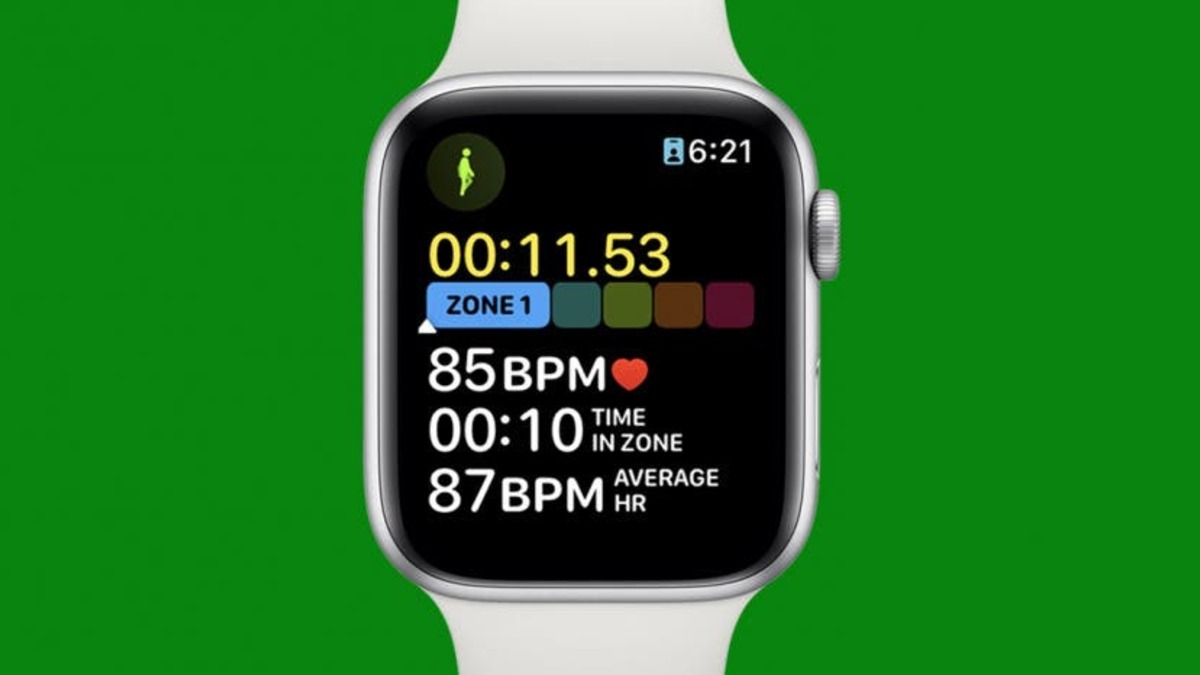
Apple introduced new workout features with the release of watchOS 9 that aim to take your personal fitness to the next level. Heart rate zones are one of these new features. This blog post explains what they are and how to use heart rate zone tracking on Apple Watch.
How to Use Heart Rate Zone Tracking on Apple Watch
Apple Watch Heart Rate Zone Tracking

With this new development, Apple has leaned more into fitness with each new version of watchOS. Fortunately, the most recent version, watchOS 9, adds more metrics to your wrist than ever before on Apple Watch.

advertisement

What Are Heart Rate Zones?

Each heart rate zone corresponds to a percentage of your maximum heart rate, or the number of beats per minute. These zones can be used as training levels to indicate your intensity level, how hard your heart is working, and whether you’re burning carbs or fat for energy.

The higher your heart rate zone, the less oxygen you consume and, as a result, the more your body relies on carbohydrates to produce glycogen to fuel your muscles. In contrast, the lower your heart rate zone, the more fat you burn, though this is offset by the fact that you burn fewer calories overall than if you worked out at a higher intensity.

How to Add Apple Watch Heart Rate Zone Tracking to a Workout

Adding Apple Watch heart rate zones to a workout is relatively easy. Here are steps to follow;

  • On your Apple Watch, launch the Workout app.
  • Tap the three dots to the right of a workout to add heart rate zones.
  • Then, to edit, tap the small pencil button.
  • Next, select Workout Views.
  • Tap Edit Views to continue.
  • Scroll down to Heart Rate Zones and turn it on. When enabled, it will be green.

When you begin your workout, you will now be able to see your heart rate zones. You can also reorder and delete workout views that are no longer relevant or useful to you.

How to View Heart Rate Zones during a Workout

Once you’ve gone into a workout’s settings and enabled Heart Rate Zones, you might be at a loss for how to find it in the middle of a workout. To do that, follow the steps below;

  • Start your workout by opening the Workout app.
  • Swipe up or rotate the Digital Crown to change Workout Views until you find the heart rate zone tracker, depending on how you have it set up.
  • You’ll need to use your iPhone to analyze and track your heart rate data over time.
  • Open the Fitness app on your iPhone.
  • Choose a workout to view your heart rate data for, or tap Show More to see more workouts.
  • Next, tap Show More after scrolling down to Heart Rate.
  • You will be able to see a graph of your heart rate throughout the workout from this point.

Wrapping it Up

There you have it on how to use heart rate zone tracking on Apple Watch. By monitoring your heart rate zone, you can make your workout more efficient and challenge yourself to improve your fitness.  Hence, being able to increase and sustain workload at a higher heart rate zone indicates that your heart is getting stronger.

Apple Watch How to
Share. Facebook Twitter Pinterest LinkedIn Tumblr Email
Frank Ochaso

Related Posts

How To Track Someone On Google Maps in 2025

April 25, 2025

How to Fix Cannot Connect to App Store on iPhone or iPad

March 2, 2025

How To Activate YouTube Kids on Smart TV

February 2, 2025
Add A Comment
Leave A Reply

Recent Posts
  • How to Use a Free Online Image Converter Easily
  • Xiaomi starts rolling out stable Android 16 based on HyperOS 2
  • Galaxy A36 Android 16-based One UI 8 build spotted
  • Galaxy A15 One UI 8 build spotted on Samsung servers
  • Xiaomi 13T HyperOS 2.2 is now available for download
About Us
AdimorahBlog was founded in 2017 and has grown into a global brand in the past years. As we continue to expand, we will keep providing our readers with the best coverage on Xiaomi HyperOS updates and smartphone latest Android OS updates. We strive to become the update hub for all smartphones. Contact Us: info@adimorahblog.com
AdimorahBlog
Facebook X (Twitter) YouTube Telegram
  • Home
  • CONTACT US
  • ABOUT US
  • PRIVACY POLICY
© 2025 AdimorahBlog. Designed by ThemeSphere.

Type above and press Enter to search. Press Esc to cancel.